In today’s digital landscape, speed and performance are critical factors for user engagement and search engine rankings. One key aspect of website performance is caching. While caching improves load times, it can sometimes prevent your latest updates from appearing on your WordPress website. This comprehensive guide will explore everything you need to know about clearing the WordPress cache, including multiple methods, best practices, and tips for preventing cache-related issues.
What is WordPress Cache?
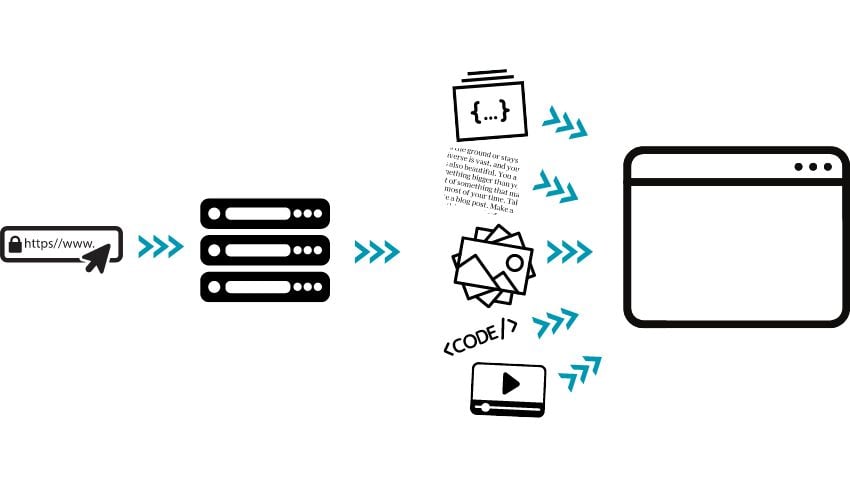
Caching is a process that stores frequently accessed website data temporarily to improve loading speed and reduce server load. Essentially, caching allows browsers and servers to serve stored versions of pages, so visitors don’t have to wait for every resource to load from scratch.
There are multiple levels of caching in WordPress:
-
Browser Cache – Stores a local copy of pages in a user’s browser.
-
Plugin Cache – WordPress plugins like LiteSpeed, WP Fastest Cache, or WP-Optimize save static HTML versions of your pages.
-
Server Cache – Some web hosts, like SiteGround or Bluehost, provide caching at the server level.
-
CDN Cache – Content Delivery Networks store cached copies of your pages at multiple locations worldwide to improve delivery speed.
By understanding these levels, you can troubleshoot performance issues more effectively and ensure your website displays the latest content.
Why Clearing the WordPress Cache is Important
While caching is essential for improving performance, it can sometimes prevent updates from appearing on your site. Common scenarios include:
-
Updating posts or pages but not seeing the changes on the frontend.
-
Plugin or theme updates not reflecting correctly.
-
New designs or media assets not loading as expected.
Without clearing the cache, visitors might see outdated content, leading to confusion, broken features, or even a negative user experience. Regular cache clearing ensures that your website remains fresh, functional, and fast.
How to Identify Cache-Related Issues
Before clearing your cache, it’s important to confirm that the issue is indeed cache-related. Signs of caching problems include:
-
Updated pages not appearing in browsers.
-
500 internal server errors or other temporary glitches.
-
Changes visible in WordPress editor but not live site.
-
Plugin-specific preview issues, e.g., Slider Revolution or Elementor previews showing outdated content.
A simple test is to open your website in a private or incognito browser window. If the latest content appears there but not in your regular browser, it’s likely a caching issue.
Five Methods to Clear WordPress Cache
There are multiple ways to clear WordPress cache, ranging from simple browser cache deletion to advanced CDN purges.
Method 1: Clear Browser Cache

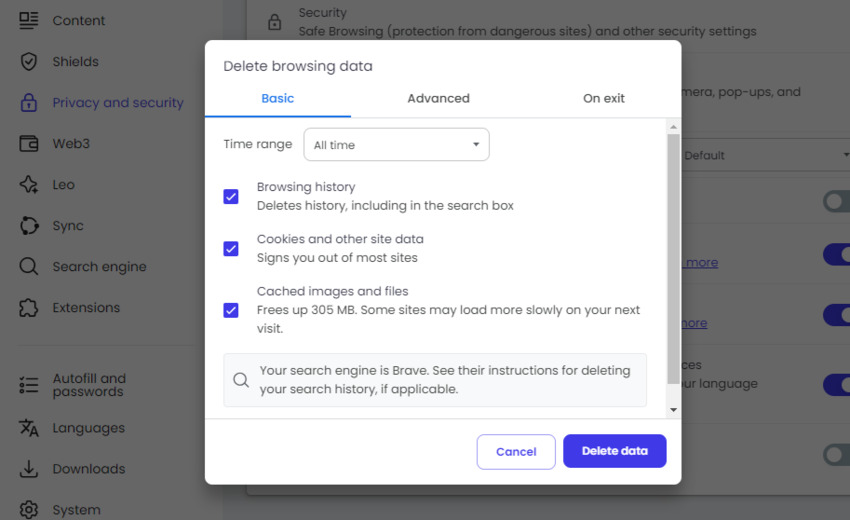
Browsers save temporary files to load websites faster. To clear your browser cache:
-
Open your browser settings (usually under the hamburger menu).
-
Navigate to Privacy & Security or Browsing Data.
-
Select Cached images and files.
-
Click Clear Data and restart the browser.
Pro Tip: Use incognito mode to bypass the browser cache temporarily while testing changes.
Method 2: Clear Cache with a WordPress Plugin
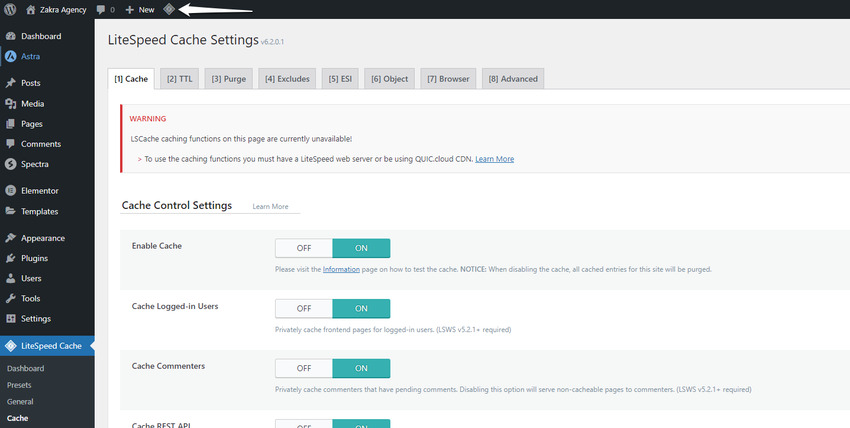
Caching plugins often provide the simplest way to manage your WordPress cache. Here are the most popular:
LiteSpeed Cache
-
Locate the LiteSpeed icon in your WordPress toolbar.
-
Choose from options like Purge All, Purge CSS/JS Cache, or Purge OpCode Cache.
-
Click the option to clear the relevant cache type.
WP-Optimize
-
Use the Purge Cache button in the toolbar.
-
Alternatively, access the WP-Optimize plugin settings and navigate to the Cache section.
-
Clear the cache for all pages or specific files.
WP Fastest Cache
-
Toolbar Delete Cache button for quick cache clearing.
-
Plugin panel options for clearing minified CSS/JS along with cached pages.
Best Practice: Always clear the plugin cache after making major changes like theme updates or new plugins.
Method 3: Clear Cache from Firewall
Some WordPress firewall plugins, such as Sucuri Security, have built-in caching.
-
Open Sucuri Security from your WordPress sidebar.
-
Navigate to Clear Cache.
-
Use Clear Global Cache or clear cache for specific URLs.
Tip: This method is especially useful if content updates aren’t reflected even after plugin cache clearing.
Method 4: Clear Cache from Web Hosting
Web hosts often have their own caching layers:
-
SiteGround: Use Site Tools > Speed > Caching to clear Dynamic Cache or Memcached.
-
Bluehost, WP Engine, Kinsta: Similar options exist under performance tools in your hosting panel.
Clearing server-level cache ensures that all visitors get the latest content, not just those bypassing browser cache.
Method 5: Clear Cache Using Your CDN
Content Delivery Networks store cached pages across multiple servers globally.
-
Log in to your CDN provider (e.g., Cloudflare, SiteGround CDN).
-
Locate the Purge Cache option.
-
Purge all files or specific URLs as needed.
Tip: CDNs are especially critical for global websites. Failing to purge CDN cache can result in outdated pages showing to international visitors.
Best WordPress Caching Plugins

Here are some of the top plugins in 2026 for managing caching efficiently:
-
LiteSpeed Cache – Full-featured, supports server-level caching, database optimization.
-
WP-Optimize – Simple, user-friendly, integrates caching with cleanup tools.
-
WP Fastest Cache – Quick cache clearing and minification features.
-
W3 Total Cache – Advanced plugin for professionals needing granular control.
-
Autoptimize – Focuses on script and style optimization, can complement caching plugins.
Common Mistakes When Handling Cache
-
Not clearing cache after updates – Can lead to stale content being shown.
-
Clearing only plugin cache – Overlooking browser, CDN, or server cache.
-
Overusing cache plugins – Multiple caching solutions can conflict and cause errors.
-
Ignoring dynamic content – Some pages like WooCommerce carts need dynamic caching rules.
Avoid these mistakes to maintain website speed without sacrificing functionality.
Advanced Cache Management Techniques
-
Automate Cache Clearing: Use plugin schedules to automatically purge cache at intervals.
-
Conditional Cache Rules: Exclude specific pages or user types from caching, e.g., logged-in users.
-
Object Caching: Store database query results to speed up dynamic page generation.
-
Preloading Cache: Some plugins allow you to generate cached pages proactively to reduce load times.
Pro Tip: Combining browser, plugin, server, and CDN caching strategies gives optimal speed while maintaining content freshness.
Frequently Asked Questions (FAQs)
Q1: Is it safe to clear WordPress cache?
Yes. Clearing the cache only deletes temporary files, not your website content. It ensures visitors see updated pages.
Q2: How often should I clear the WordPress cache?
Depends on your website. Small static sites may only need weekly clearing. Blogs or ecommerce sites with frequent updates may require daily cache purges.
Q3: Which caching method should I start with?
Begin with browser cache, then clear plugin cache, followed by server and CDN cache if needed.
Q4: Can caching plugins conflict with each other?
Yes. Using multiple caching plugins simultaneously can cause errors. Stick to one comprehensive caching solution.
Q5: Will clearing cache slow down my site?
Initially, the site may load slower because cached pages are rebuilt. This is temporary and ensures updated content is served.
Final Thoughts
Caching is essential for website speed, but improper management can lead to stale content, broken previews, and user frustration. By understanding browser, plugin, server, and CDN caching, and following the methods outlined in this guide, you can ensure your WordPress website is both fast and up-to-date.
Remember: Regular cache clearing, intelligent plugin use, and scenario-specific rules will help you maintain the perfect balance between performance and freshness.