If you’ve ever needed to tweak advanced settings in WordPress or troubleshoot server errors, the .htaccess file is one of the most important tools at your disposal. This file, though often hidden, allows you to configure server rules, improve performance, and enhance security on your WordPress site.
In this guide, we’ll explain what the .htaccess file is, where to find it, and how to safely edit it, whether manually or using a plugin.
What is the WordPress .htaccess File?
The .htaccess file is a configuration file used by Apache servers that enables WordPress users to control important aspects of their website.
With .htaccess, you can:
-
Modify your permalink structure
-
Enable browser caching
-
Activate gzip compression to speed up your site
-
Password-protect pages or directories
-
Block access to sensitive files like wp-config.php
-
Whitelist or blacklist specific IP addresses
-
Increase maximum file upload sizes
-
Set up 301 redirects and other URL rewrites
-
Create custom error pages
-
Enforce HTTPS
-
Serve WebP images for faster loading
-
Prevent image hotlinking
It’s also extremely useful for troubleshooting WordPress errors. For example, restoring .htaccess to its default state can often resolve 500 Internal Server Errors or 403 Forbidden Errors.
Note: If your site is hosted on Nginx, you won’t have a .htaccess file. Similar rules can still be applied at the server configuration level.
Where Is the .htaccess File in WordPress?
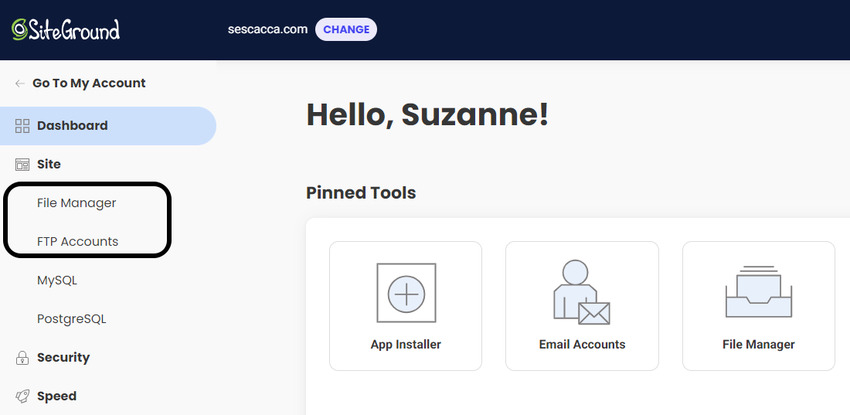
By default, WordPress does not generate a visible .htaccess file in your dashboard. You’ll need to access your server files through:
-
FTP (File Transfer Protocol)
-
File Manager in your hosting control panel (cPanel, Plesk, or SiteGround Site Tools)
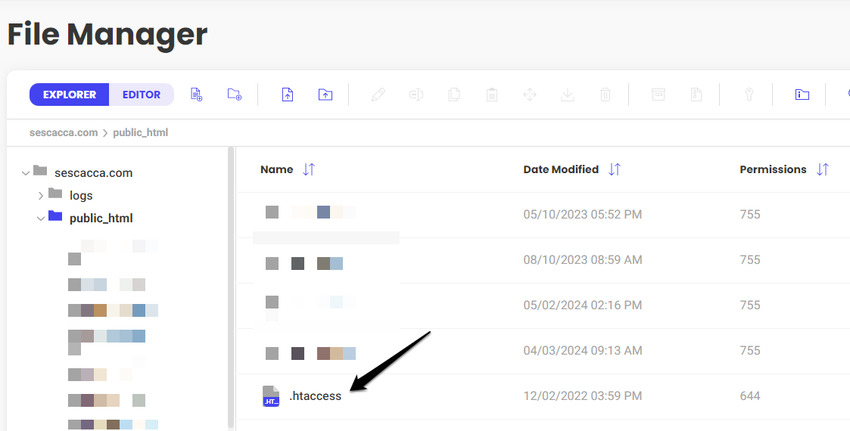
Once you access the root of your site (commonly called public_html), you should see the .htaccess file.
Tips to locate it:
-
Make sure your hosting server uses Apache, not Nginx.
-
.htaccess is a hidden file (because of the leading dot). Enable “show hidden files” in your FTP or File Manager settings.
How Do You Edit the .htaccess File?
1. Manually Editing .htaccess
Once located, you can edit .htaccess like a normal text file. Here’s how:
-
Right-click the file → select Edit, or
-
Select the file → click the pencil icon in File Manager, or
-
Double-click the file to open it.
Important: Always backup your website before editing .htaccess. Mistakes in this file can break your site.
Example Commands You Can Add
Blacklist an IP address:
Implement a 301 redirect:
Enforce HTTPS:
2. Editing .htaccess Using a Plugin
For WordPress users who prefer not to use FTP, plugins like WP Htaccess Editor allow you to safely edit .htaccess from the dashboard:
-
Install and activate WP Htaccess Editor.
-
Navigate to Settings → WP Htaccess Editor.
-
Make your edits in the editor.
-
Click Test Before Saving to ensure changes won’t break your site.
-
Click Save Changes if everything looks correct.
How to Create a New .htaccess File
You might need to create a new .htaccess file if it’s missing, corrupted, or if you need a file in a subdirectory. There are two main methods:
Option 1: Manually Create a File
-
Open FTP or File Manager.
-
Create a New File named .htaccess.
-
Paste the default WordPress code:
-
Save the file.
-
Add custom rules if needed.
Option 2: Generate via WordPress Permalinks
-
Log in to WordPress → Settings → Permalinks.
-
Change the permalink structure and click Save Changes.
-
WordPress automatically generates a new .htaccess file in the root folder.
After generating, restore your preferred permalink structure if you changed it temporarily.
Summary: Why .htaccess Matters
Although often overlooked, the .htaccess file is a powerful tool that allows you to:
-
Enhance website security
-
Improve performance and caching
-
Troubleshoot common WordPress errors
-
Customize redirects, error pages, and file access
Understanding its purpose and using it responsibly can save time, improve your site’s performance, and protect your WordPress installation from threats.
Pro Tips:
-
Always backup before editing .htaccess.
-
Use plugins for safer editing if you’re not comfortable with code.
-
Keep a clean, well-documented version for easier troubleshooting.
FAQ – WordPress .htaccess File
1. What is the WordPress .htaccess file?
The .htaccess file is a configuration file for Apache servers that controls important website settings. It can manage redirects, security rules, caching, and permalinks for WordPress sites.
2. Where is the .htaccess file located in WordPress?
The .htaccess file is usually in the root folder of your website (commonly public_html). If you don’t see it, enable “show hidden files” in your FTP client or File Manager.
3. Can I edit the .htaccess file from WordPress?
Yes. You can edit .htaccess directly via FTP or File Manager, or use a WordPress plugin like WP Htaccess Editor for safer, in-dashboard editing.
4. How do I back up the .htaccess file?
Before making changes, download a copy via FTP or your hosting File Manager. You can also use WordPress backup plugins to secure your site.
5. What can I do with the .htaccess file?
You can:
-
Enforce HTTPS
-
Set up 301 redirects
-
Improve browser caching
-
Block access to sensitive files (like wp-config.php)
-
Whitelist or blacklist IP addresses
-
Serve WebP images and optimize performance
-
Create custom error pages
6. Can .htaccess fix WordPress errors?
Yes. Resetting .htaccess to its default state can often resolve 500 Internal Server Errors and 403 Forbidden Errors.
7. Do all WordPress websites have a .htaccess file?
No. Only sites hosted on Apache servers have .htaccess. If your site is on Nginx, similar configurations must be applied at the server level.
8. How do I create a new .htaccess file?
You can create a new .htaccess file either by:
-
Manually creating a file in your root directory and pasting the default WordPress code, or
-
Changing your permalink structure in WordPress (Settings → Permalinks → Save Changes) to auto-generate a new file.
9. Is editing .htaccess risky?
Yes, incorrect changes can break your website. Always backup first, test changes, and use plugins if you are not confident with code.
10. Can I use .htaccess to improve SEO?
Absolutely. .htaccess can help improve SEO by:
-
Enforcing canonical URLs
-
Setting up 301 redirects from old pages to new ones
-
Preventing duplicate content issues
-
Serving optimized images and improving site speed