
- Improving Perceived Performance
- Enhancing Brand Identity
- Creating Smooth Page Transitions
- Reducing Bounce Rates
- Choosing a No-Library Approach
- Overview of the Animation Concept
- Project Structure
- Step 1: Writing the HTML Markup
- Step 2: Global CSS Variables and Resets
- Step 3: Styling the Animation Panels
- Step 4: Styling the Main Content
- Step 5: Triggering Animations with JavaScript
- Step 6: Defining Animation States in CSS
- Performance and Accessibility Considerations
- Extending the Animation
- Common Mistakes to Avoid
- Frequently Asked Questions (FAQ)
- 1. What is a JavaScript page loading animation?
- 2. Why should I use a page loading animation on my website?
- 3. Can I create a page loading animation without using libraries?
- 4. Is using vanilla JavaScript better than animation libraries?
- 5. Does a page loading animation affect website performance?
- 6. Is this type of animation suitable for multi-page websites?
- 7. Are page loading animations mobile-friendly?
- 8. How can I make loading animations accessible?
- 9. Can this animation be customized for branding?
- 10. Is this animation SEO-friendly?
- 11. What browsers support this animation technique?
- 12. Can this animation be used with frameworks like WordPress or Next.js?
- 13. When should I avoid using page loading animations?
- 14. Is this approach future-proof for 2026 and beyond?
Page loading animations have become an essential part of modern web design. In a world where users expect fast, smooth, and visually pleasing experiences, a simple white screen while a page loads often feels outdated and unprofessional. A well-crafted loading animation not only improves perceived performance but also reinforces branding, guides user attention, and creates a polished first impression.
Many developers rely on powerful animation libraries such as GSAP, Anime.js, or Lottie to create advanced loading effects. While these tools are excellent, they are not always necessary. In many cases, you can build beautiful, performant, and flexible page loading animations using pure HTML, CSS, and vanilla JavaScript—without adding any external dependencies.
In this in-depth tutorial, you will learn how to build a JavaScript page loading animation from scratch, using modern CSS features and a small amount of JavaScript logic. This guide is written as an original, SEO-friendly resource designed for 2026 and beyond, focusing on clean architecture, performance, and maintainability.
By the end of this article, you will understand:
- Why page loading animations matter for user experience
- How to structure a multi-page loading animation without libraries
- How to use CSS transitions and variables to create staggered effects
- How to synchronize animations using JavaScript events
- How to extend and optimize the animation for real-world projects
This tutorial is suitable for designers, front-end developers, and anyone who wants to create modern UI animations without relying on heavy libraries.

Why Page Loading Animations Matter
Before diving into code, it is important to understand why page loading animations are worth implementing.
Improving Perceived Performance
Even when a website loads quickly, users may still perceive it as slow if nothing happens on the screen. A loading animation provides immediate feedback, reassuring users that the page is working as expected. In many cases, this perceived performance improvement matters more than raw loading speed.
Enhancing Brand Identity
A custom loading animation can reflect a brand’s personality through color, motion, and rhythm. Subtle animations feel elegant and professional, while bold transitions can feel energetic and creative. This makes loading animations an excellent branding opportunity.
Creating Smooth Page Transitions
On multi-page websites, loading animations can make transitions between pages feel seamless rather than abrupt. This is especially valuable for portfolios, marketing sites, and editorial websites.
Reducing Bounce Rates
Users are more likely to stay on a site when they see clear visual feedback during loading. A blank screen, on the other hand, increases uncertainty and bounce rates.
Choosing a No-Library Approach
Using vanilla JavaScript and CSS has several advantages:
- Performance: No extra JavaScript payload from third-party libraries
- Control: Full ownership of animation logic and timing
- Compatibility: Easier to debug and maintain over time
- Learning value: Better understanding of how animations actually work
For simple to medium-complexity loading animations, CSS transitions combined with minimal JavaScript are more than sufficient.
Overview of the Animation Concept
The page loading animation we will build follows a clear sequence:
- When the page loads, vertical panels rise from the bottom of the screen.
- These panels then slide upward and disappear.
- Finally, the page content fades and slides into view.
The animation relies on:
- CSS variables to control timing and layout
- CSS clip-path to reveal and hide panels
- CSS transitions for smooth motion
- JavaScript event listeners to coordinate animation phases
This approach works across multiple pages and does not depend on any external animation libraries.
Project Structure
A clean file structure keeps the project easy to understand and extend:
page-loading-animation/
├── index.html
├── about.html
├── contact.html
├── main.css
└── main.js
Each HTML file shares the same structure, CSS, and JavaScript. This ensures consistent transitions between pages.
Step 1: Writing the HTML Markup
The HTML markup is intentionally minimal. We only include elements that are essential for the animation.
Core Layout Elements
- A header with navigation links
- A list of panels used for the animation
- A main container for page content
Here is an example HTML structure:
<!doctype html>
<html lang="en">
  <head>
    <meta charset="utf-8">
    <meta name="viewport" content="width=device-width, initial-scale=1">
    <title>JavaScript Page Loading Animation</title>
    <link rel="stylesheet" href="main.css">
  </head>
  <body>
    <header class="page-header">
      <nav>
        <ul>
          <li><a href="index.html">Home</a></li>
          <li><a href="about.html">About</a></li>
          <li><a href="contact.html">Contact</a></li>
        </ul>
      </nav>
    </header>

    <ul class="panels">
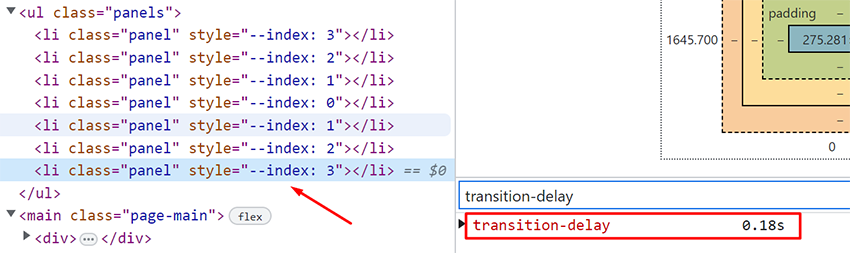
      <li class="panel" style="--index: 3"></li>
      <li class="panel" style="--index: 2"></li>
      <li class="panel" style="--index: 1"></li>
      <li class="panel" style="--index: 0"></li>
      <li class="panel" style="--index: 1"></li>
      <li class="panel" style="--index: 2"></li>
      <li class="panel" style="--index: 3"></li>
    </ul>

    <main class="page-main">
      <div>
        <h1>Home Page</h1>
        <p>Welcome to the site.</p>
      </div>
    </main>

    <script src="main.js"></script>
  </body>
</html>
Why Inline CSS Variables Matter
Each panel uses a custom CSS variable called –index. This value controls the animation delay, allowing panels closer to the center to animate faster while outer panels animate later. This creates a natural staggered effect.
Step 2: Global CSS Variables and Resets
We begin our CSS with variables and resets to ensure consistency:
:root {
  --panel-width: calc(100% / 7);
  --dark-bg: #02020c;
  --light-bg: #fafafb;
  --text-color: #ffffff;
}

* {
  margin: 0;
  padding: 0;
  box-sizing: border-box;
}

body {
  height: 100vh;
  font-family: system-ui, sans-serif;
  background: var(--dark-bg);
  color: var(--text-color);
  overflow: hidden;
}
These variables make it easy to adjust colors, layout, and proportions without rewriting large portions of CSS.
Step 3: Styling the Animation Panels
The panels form the core of the loading animation.
Panel Layout
Each panel:
- Is fixed-positioned
- Covers the full viewport height
- Occupies one-seventh of the screen width
- Starts hidden using clip-path
.panels .panel {
  position: fixed;
  top: 0;
  bottom: 0;
  width: calc(var(--panel-width) + 1px);
  background: var(--light-bg);
  clip-path: inset(100% 0 0 0);
  transition: all 1s cubic-bezier(0.25, 1, 0.25, 1);
}
The extra pixel prevents visible gaps between panels on some screen sizes.
Horizontal Positioning
Each panel is positioned horizontally using nth-child selectors:
.panels .panel:nth-child(1) { left: 0; }
.panels .panel:nth-child(2) { left: var(--panel-width); }
.panels .panel:nth-child(3) { left: calc(var(--panel-width) * 2); }
.panels .panel:nth-child(4) { left: calc(var(--panel-width) * 3); }
.panels .panel:nth-child(5) { left: calc(var(--panel-width) * 4); }
.panels .panel:nth-child(6) { left: calc(var(--panel-width) * 5); }
.panels .panel:nth-child(7) { left: calc(var(--panel-width) * 6); }
Step 4: Styling the Main Content
The main content should remain hidden during the loading animation.
.page-main {
  display: flex;
  height: 100%;
  padding: 100px 20px;
}

.page-main > div {
  margin: auto;
  text-align: center;
}

.page-main > div > * {
  opacity: 0;
  transition: all 0.5s ease-out;
}

.page-main h1 {
  transform: translateY(-100px);
}

.page-main p {
  transform: translateY(100px);
}
This setup prepares the content for a smooth fade-and-slide entrance.
Step 5: Triggering Animations with JavaScript
JavaScript is used only to add and manage CSS classes.
const body = document.body;
const lastPanel = document.querySelector('.panels .panel:last-child');

window.addEventListener('load', () => {
  body.classList.add('loaded');

  lastPanel.addEventListener('transitionend', () => {
    if (body.classList.contains('second-round')) {
      body.classList.add('third-round');
    } else {
      body.classList.add('second-round');
    }
  });
});
This logic mimics a timeline by reacting to the completion of CSS transitions.
Step 6: Defining Animation States in CSS
.loaded .panels .panel {
  clip-path: inset(0);
  transition-delay: calc(var(--index) * 0.06s);
}

.loaded.second-round .panels .panel {
  clip-path: inset(0 0 100% 0);
}

.loaded.third-round {
  overflow: auto;
}

.loaded.third-round .page-main > div > * {
  opacity: 1;
  transform: none;
}
Each class represents a new phase of the animation sequence.
Performance and Accessibility Considerations
- Avoid excessive animation durations
- Respect user prefers-reduced-motion settings
- Keep JavaScript minimal
- Test on low-powered devices
Extending the Animation
You can enhance this animation by:
- Adding page-specific colors
- Introducing easing variations
- Integrating with SPA-style navigation
- Combining with lazy loading
Common Mistakes to Avoid
- Overusing animations
- Blocking content visibility for too long
- Ignoring mobile performance
- Hardcoding values instead of using CSS variables
Building a JavaScript page loading animation without external libraries is not only possible—it is often the best choice for performance and maintainability. By combining modern CSS techniques with a small amount of JavaScript, you can create smooth, professional loading animations that enhance user experience and elevate your website’s design.
This approach scales well, works across multiple pages, and gives you full creative control. As web standards continue to evolve in 2026 and beyond, mastering these fundamentals will remain a valuable skill for any front-end developer or designer.
Frequently Asked Questions (FAQ)
1. What is a JavaScript page loading animation?
A JavaScript page loading animation is a visual effect displayed while a web page is loading or transitioning between pages. It helps improve perceived performance, provides feedback to users, and creates a smoother, more professional user experience.
2. Why should I use a page loading animation on my website?
Page loading animations reduce user frustration, improve perceived loading speed, strengthen brand identity, and make page transitions feel smoother—especially on multi-page websites or content-heavy platforms.
3. Can I create a page loading animation without using libraries?
Yes. You can build effective and visually appealing page loading animations using only HTML, CSS, and vanilla JavaScript. Modern CSS features like transitions, clip-path, and variables make it possible without relying on external libraries.
4. Is using vanilla JavaScript better than animation libraries?
For simple to medium-complexity animations, vanilla JavaScript is often better because it reduces file size, improves performance, and avoids unnecessary dependencies. Animation libraries are more suitable for complex timelines and advanced interactions.
5. Does a page loading animation affect website performance?
When implemented correctly, it does not negatively affect performance. Lightweight CSS transitions combined with minimal JavaScript can actually improve perceived performance without increasing load time.
6. Is this type of animation suitable for multi-page websites?
Yes. This technique works especially well for multi-page websites because it creates consistent and smooth transitions when navigating between pages, making the experience feel more cohesive.
7. Are page loading animations mobile-friendly?
They can be mobile-friendly if designed responsibly. It’s important to keep animations lightweight, avoid excessive motion, and test performance on low-powered devices.
8. How can I make loading animations accessible?
To ensure accessibility, respect the prefers-reduced-motion media query, avoid long blocking animations, maintain sufficient color contrast, and ensure content becomes visible quickly for screen readers.
9. Can this animation be customized for branding?
Yes. You can customize colors, animation timing, panel count, easing functions, and layout styles to match your brand identity while keeping the same core logic.
10. Is this animation SEO-friendly?
Yes. Page loading animations do not negatively affect SEO as long as content remains accessible to search engines, animations do not block rendering excessively, and the site maintains good Core Web Vitals.
11. What browsers support this animation technique?
Modern browsers support CSS transitions, clip-path, and JavaScript events used in this approach. It works well in all major browsers, including Chrome, Firefox, Edge, and Safari.
12. Can this animation be used with frameworks like WordPress or Next.js?
Yes. The concept can be adapted for WordPress themes, static sites, and even JavaScript frameworks. However, additional handling may be required for client-side routing in SPA frameworks.
13. When should I avoid using page loading animations?
You should avoid loading animations if they delay content unnecessarily, conflict with accessibility needs, or reduce usability on performance-sensitive applications.
14. Is this approach future-proof for 2026 and beyond?
Yes. This method relies on web standards rather than third-party libraries, making it stable, maintainable, and compatible with future browser updates.