

In 2026, smartphones are more powerful than ever, packed with AI smarts, advanced privacy tools, and seamless integrations that most users never fully explore. Whether you’re rocking the latest iPhone 17 series on iOS 26 or a Google Pixel 10 / Samsung Galaxy S26 on Android 16+, these hidden features can transform your daily routine—saving time, blocking distractions, protecting your data, and even extending battery life.
This ultimate guide dives into 22 hidden smartphone tips that go beyond the basics. Perfect for beginners in Bandung or Jakarta and advanced users alike, these hacks are updated for 2026 realities: enhanced Apple Intelligence in iOS 26, smarter Gemini AI on Android, and privacy-focused updates across both platforms. We’ll cover step-by-step instructions, why each tip matters, and real-world examples. Let’s maximize your phone’s potential—no jailbreaks or third-party apps required for most!
Why These 2026 Hidden Tips Matter More Than Ever
With cyber threats rising and daily notifications overwhelming us, privacy and efficiency are key. In Indonesia, where spam calls and texts are rampant, features like automatic spam blocking are lifesavers. Plus, with foldables and AI-heavy devices rolling out, hidden tweaks help you stand out. These tips draw from real user experiences and the latest OS updates, helping you boost productivity by 30-50% (based on time saved from automation).
Ready? Here are the 22 best hidden smartphone hacks for 2026.
1. One-Tap Redial for Your Last Call (iPhone Only)
Forgot to confirm delivery details? Redial instantly.
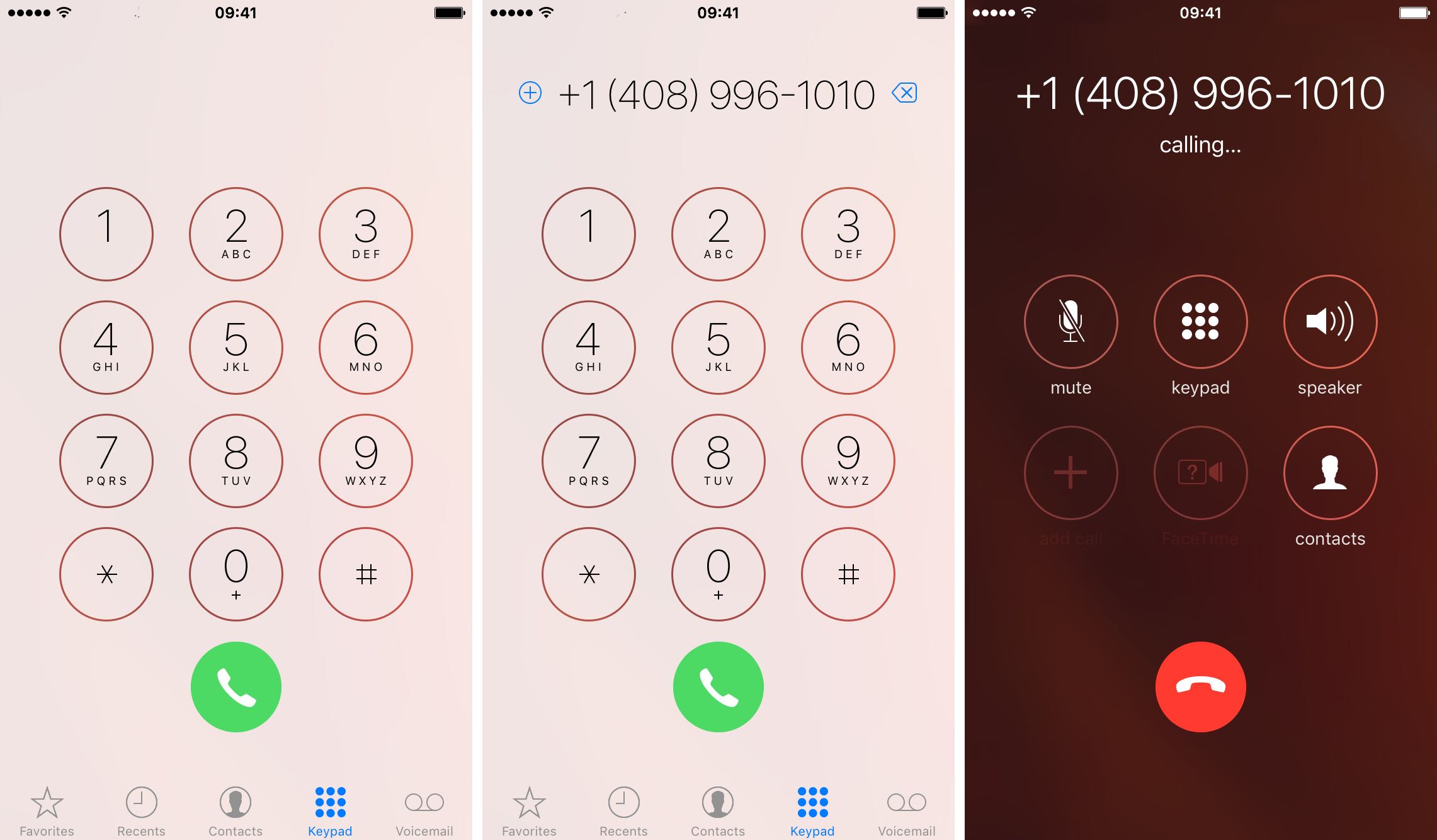
iPhone (iOS 26+): Open Phone app → Keypad tab → tap the green call button—it auto-redials your last outgoing call.
Android Workaround: Use Google Phone app’s Recents tab or add speed-dial widgets.
Why it matters: Saves seconds in busy lives—like ordering GoFood in Bandung traffic.
Here’s a clear view of the iPhone keypad in action:
2. Automatically Silence & Block Spam Calls Forever
Robocalls are history.
iPhone: Settings > Phone > Silence Unknown Callers (toggle on). Unknowns go to voicemail; Apple Intelligence filters better in iOS 26.
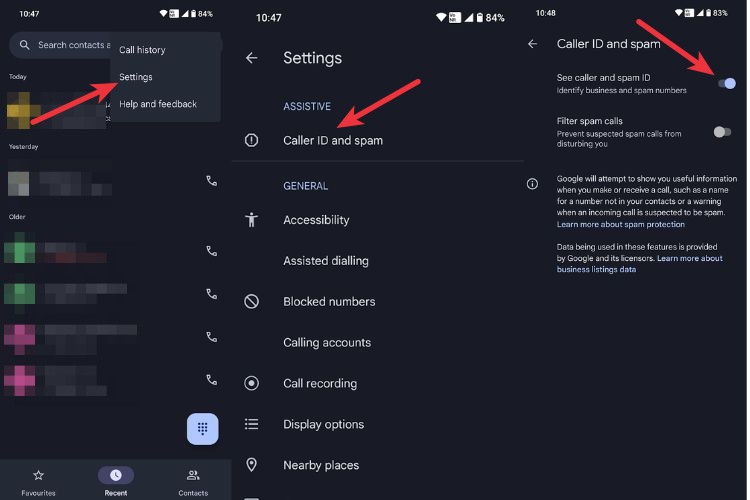
Android: Phone app > three dots > Settings > Spam & Call Screen > enable Filter spam calls. Pixel/Samsung add AI screening.
Visual of Android spam settings:
3. Hide Caller ID for Private Outgoing Calls
Perfect for surprises or sales calls.
iPhone: Settings > Phone > Show My Caller ID > off (carrier-dependent).
Android: Phone app > three dots > Settings > Calls > Additional Settings > Caller ID > Hide number.
4. Legally Record Calls with Built-in Tools
Always ask permission—Indonesian law requires it.
iPhone: During call, tap Record button (expanded in iOS 26).
Android: Native Record in Google Phone/Pixel/Samsung.
5. Edit or Unsend Messages After Sending
Fix typos fast.
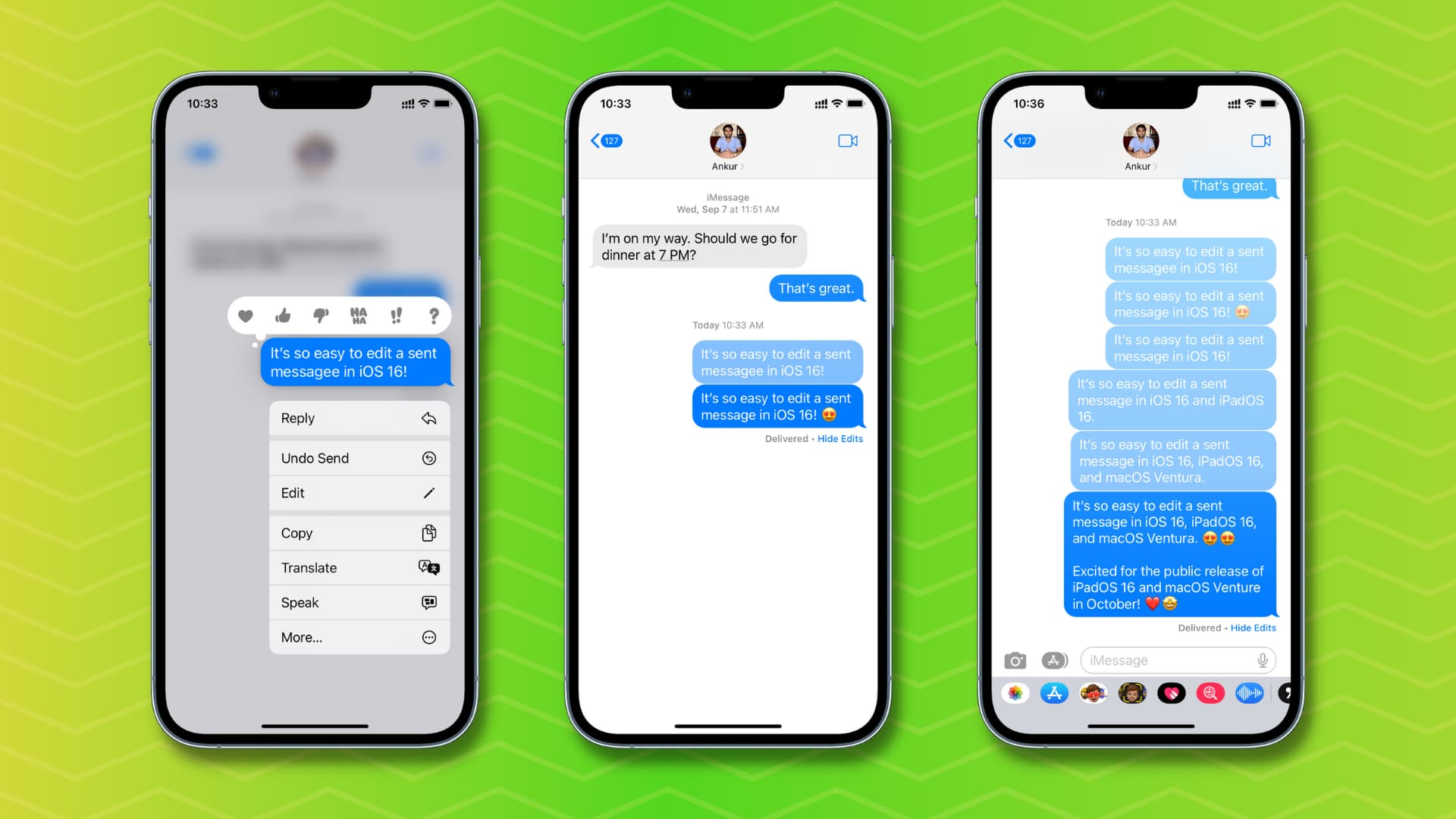
iPhone: Press & hold message > Edit (15 min) or Undo Send (2 min).
Android (Google Messages): Press & hold > Edit (15 min) or Delete for everyone.
See it in action:

6. Hide Sensitive Notification Previews on Lock Screen
Keep texts private.
iPhone: Settings > Notifications > Messages > Show Previews > Never.
Android: Settings > Notifications > App notifications > Messages > Lock screen > Hide sensitive content.
Example of hidden previews:

7. Recover Deleted Texts (Up to 40 Days)
Lost an important chat?
iPhone: Messages > Filters > Recently Deleted > Recover.
Android: Check Archived or Google backup.
8. Block & Report Spam SMS Instantly
Stop promo scams.
iPhone: Open message > Info > Block this Caller.
Android: Three dots > Block & report spam.
9. Have Your Phone Read Web Pages, Articles, or Recipes Aloud
Hands-free reading while cooking or driving.
iPhone: Safari > AA icon > Listen to Page. Or “Hey Siri, read this.”
Android: “Hey Google, read this page.”
Safari’s Listen feature:

10. Play White Noise to Mask Distractions or Help Sleep
Rain sounds block office noise.
iPhone: Settings > Accessibility > Audio/Visual > Background Sounds > choose Rain, Ocean, etc.
Android: “Hey Google, play white noise.”
11. Back Tap Gestures for Quick Actions (iPhone Exclusive)
Double/triple tap back for screenshots, flashlight, etc.
iPhone: Settings > Accessibility > Touch > Back Tap > set actions.
12. Private Space for Hidden Apps (Android)
Lock sensitive apps.
Android (Android 15+): Settings > Security & privacy > Private Space > set up with biometrics.
13. Auto Do Not Disturb When Face Down
Peace during meetings.
Android (Pixel/Samsung): Flip phone face down for DND.
14. Real-Time Camera Translation
Translate signs/menus instantly.
iPhone: Camera app > point at text > Live Text.
Android: Google Lens in Camera.
15. Offload Unused Apps to Free Storage
Remove apps but keep data.
iPhone: Settings > General > iPhone Storage > Offload Unused Apps.
Android: Similar in Play Store settings.
16. Advanced Focus Modes with AI Automation
Auto-switch modes based on location/time.
iPhone: Settings > Focus > create custom with Apple Intelligence.
Android: Digital Wellbeing > Focus mode.
17. Live Captions for Videos & Calls
Accessibility boost.
iPhone/Android: Enable in Accessibility > Live Captions.
18. Auto-Launch Navigation When Connecting to Car Bluetooth
Hands-free driving.
Both: Use Shortcuts (iOS) or Routines (Samsung) / Tasker (Android).
19. Hide & Secure Apps in Folders
Declutter home screen.
iPhone: Long-press app > Hide.
Android: Secure Folder on Samsung.
20. Quick Tap Gestures (Pixel Exclusive)
Double-tap back for actions.
Android (Pixel): Settings > System > Gestures > Quick Tap.
21. Battery Health & Optimization Secrets
Extend life with adaptive charging.
iPhone: Settings > Battery > Battery Health.
Android: Adaptive Battery in Settings.
22. Voice-to-Text & Advanced Siri/Google Assistant Commands
Dictate emails faster.
Both: Use voice input everywhere; add custom commands.
Conclusion: Take Control of Your Smartphone in 2026
These 22 hidden tips—from spam blocking to white noise and AI automations—unlock your phone’s full power. Start with privacy ones (tips 2, 3, 6) for immediate impact. In Indonesia, they combat local spam issues while boosting efficiency.
Which tip will you try first? Share in comments! For more 2026 tech, check our Galaxy S26 Ultra color leaks guide.
Smartphone Hidden Tips FAQ (2026 Edition – iPhone & Android)
1. How do I quickly redial the last number I called on my iPhone?On iPhone (iOS 26+): Open the Phone app → tap the Keypad tab → tap the green call button at the bottom. It automatically redials your most recent outgoing call—no need to search contacts! On Android: No built-in one-tap redial, but open the Phone app (Google Phone or Samsung Dialer) → go to Recents → tap the last number, or add favorites/speed dial widgets to your home screen for faster access.
2. How can I automatically silence or block spam/robocalls?iPhone: Go to Settings > Phone > Silence Unknown Callers → turn it on. Calls from unknown numbers go straight to voicemail (they can still leave messages, and known contacts ring normally). Enhanced spam detection via Apple Intelligence in iOS 26 helps even more. Android: Open the Phone app > tap the three dots > Settings > Spam & Call Screen (or Caller ID & spam) → enable “Filter spam calls” and “Call Screen” for AI screening. On Samsung, also enable “Block unknown/private numbers.”
3. Can I hide my caller ID so calls show as “Private” or “Unknown”? Yes, but it’s carrier-dependent (works in Indonesia with most providers). iPhone: Settings > Phone > Show My Caller ID → toggle off. Android: Open Phone app > three dots > Settings > Calls > Additional Settings > Caller ID → select “Hide number.” Use this for privacy (e.g., surprises or dating apps), but note some services may block hidden-ID calls.
4. How do I record phone calls on my smartphone? Always get permission first—Indonesia requires consent for legal recording. iPhone (iOS 26+): During a call, a “Record” button appears (in supported regions); tap to start. Or use apps like Otter.ai for AI transcription. Android: On Pixel/Samsung/Google Phone, a “Record” button shows during calls. If missing, install/update “Phone by Google” from Play Store—it’s widely supported now.
5. Can I edit or unsend a message after I’ve sent it? Yes, for typos or wrong recipients! iPhone (iMessage): Press and hold the sent message → tap “Edit” (up to 15 minutes) or “Undo Send” (up to 2 minutes). Android (Google Messages/RCS): Press and hold → tap “Edit” (within 15 minutes) or “Delete for everyone.” Works best in RCS chats.
6. How do I prevent message previews from showing on my lock screen for privacy? iPhone: Settings > Notifications > Messages (or other apps) → Show Previews → select “Never.” Android: Settings > Notifications > App notifications > Messages → Lock screen notifications → choose “Hide sensitive content” or “Don’t show.” This keeps texts private from prying eyes.
7. I accidentally deleted important text messages—can I recover them? iPhone: Open Messages app → tap Filters (top left) > Recently Deleted → select messages → Recover (available up to 30–40 days). Android: In Google Messages, check Archived (three lines menu > Archived) or Trash/Recycle bin. For full recovery, restore from Google One backup (may need device reset in some cases). Enable backups regularly!
8. How do I block and report spam text messages (SMS scams/promos)? iPhone: Open the spam message → tap the arrow/contact > Info > Block this Caller. Android: Open message → three dots > Details/Details > Block & report spam. Both platforms have improved spam detection in 2026.
9. Can my phone read webpages, articles, or recipes aloud hands-free? iPhone: In Safari, open a page → tap the “AA” icon > Listen to Page. Or say “Hey Siri, read this page.” iOS 26 voices are more natural with Apple Intelligence. Android: Say “Hey Google, read this page” or use Google Lens → select text → Listen. Works great for recipes or news while cooking/driving.
10. How do I play white noise (rain, ocean, etc.) to block distractions or help sleep? iPhone: Settings > Accessibility > Audio/Visual > Background Sounds → toggle on → choose Rain, Ocean, Stream, etc. (plays even when locked). Android: Say “Hey Google, play white noise” / “play rain sounds” — Google Assistant starts it instantly. Or check the Clock app for built-in ambient sounds.