Windows 11 has evolved far beyond a simple visual refresh of Windows 10. Beneath its clean interface lies a surprisingly powerful operating system packed with productivity tools, AI-driven features, performance optimizations, and customization options that many users never discover.
If you’re still using Windows 11 the same way you used older versions of Windows—clicking Start, opening apps, and doing little else—you’re leaving massive potential on the table.
In this in-depth guide, you’ll learn 31 advanced Windows 11 tricks that Microsoft never clearly explains. These tips cover AI-powered Copilot features, multitasking workflows, performance tuning, hidden customization settings, security improvements, accessibility enhancements, and productivity shortcuts that will transform how you use your PC.
Whether you’re a casual user, remote worker, content creator, or power user, this guide will help you unlock Windows 11’s full potential in 2026 and beyond.
Why Windows 11 Is More Powerful Than Most People Realize
Microsoft designed Windows 11 to adapt to modern computing needs: AI assistance, hybrid work, touch devices, gaming, and security-first design. With continuous updates like 23H2, 24H2, and Copilot+ features, Windows 11 has quietly become one of the most capable desktop operating systems ever built.
The problem?
Many of its best features are hidden behind menus, disabled by default, or poorly explained.
Let’s fix that.
1. Move the Start Button Back to the Left (Or Keep It Centered—Your Choice)
One of the first things users notice in Windows 11 is the centered Start menu. While modern-looking, not everyone loves it.
How to change it:
-
Right-click the taskbar
-
Open Taskbar settings
-
Expand Taskbar behaviors
-
Set Taskbar alignment to Left
This instantly restores a classic Windows layout while keeping Windows 11’s modern UI intact.
2. Use Microsoft Copilot as a True AI Assistant (Not Just a Chatbot)
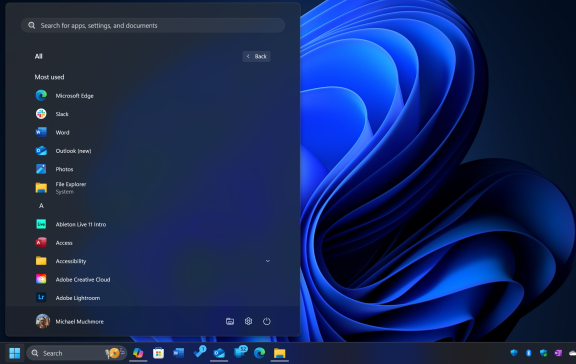
Copilot is far more than a built-in chatbot. In 2026, it functions as a context-aware AI assistant deeply integrated into Windows.
You can use Copilot to:
-
Rewrite emails or documents
-
Summarize PDFs and web pages
-
Generate images and ideas
-
Explain on-screen content
-
Help with app workflows
-
Assist with coding tasks
-
Search your local files semantically
On Copilot+ PCs, features expand further with:
-
Recall (timeline-based activity recovery)
-
Click-to-Do suggestions
-
Advanced image editing
-
AI-powered Settings agent
Pro tip: Use voice activation (“Hey Copilot”) for hands-free assistance.
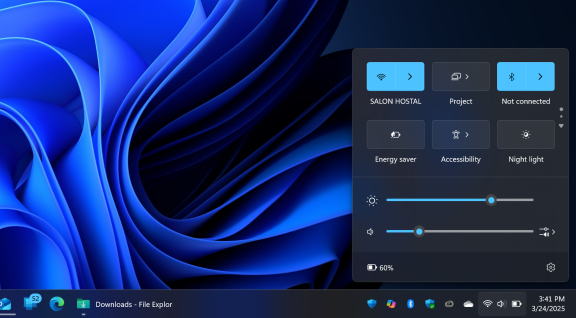
3. Master the New Quick Settings Panel
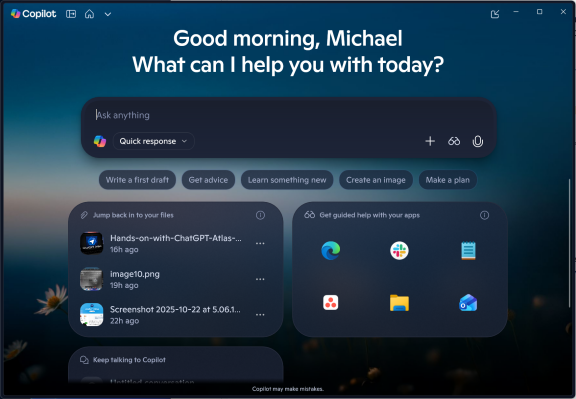
Windows 11 separates notifications and system controls into a cleaner Quick Settings panel.
Click the Wi-Fi / volume / battery area to instantly control:
-
Wi-Fi & Bluetooth
-
Display projection
-
Airplane mode
-
Battery saver
-
Sound output
-
Color profiles (on supported devices)
In newer versions, settings scroll vertically and can be reordered—giving you faster access to what matters most.
4. Create Multiple Virtual Desktops for Better Focus
Virtual desktops are one of Windows 11’s most underrated productivity features.
You can:
-
Create separate desktops for work, gaming, study, or personal use
-
Assign different wallpapers to each desktop
-
Drag apps between desktops
-
Rearrange desktop order visually
Shortcut:
Windows + Tab → New Desktop
This is perfect for reducing distractions and organizing complex workflows.
5. Use Widgets as a Personal Information Dashboard
Widgets in Windows 11 are no longer just gimmicks.
You can track:
-
Weather
-
Calendar events
-
Tasks
-
News
-
Sports
-
Traffic
-
Stocks
-
Music playback
Third-party widgets add even more flexibility, and lock-screen widgets allow quick-glance updates without unlocking your PC.
6. Snap Layouts: Multitasking Done Right
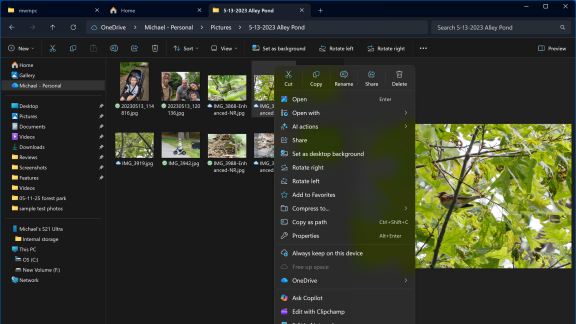
Windows 11 takes window snapping to the next level.
Hover over the maximize button to access Snap Layouts:
-
Split screen
-
Three-column layouts
-
Picture-in-picture arrangements
Layouts adapt to screen size and resolution, making them ideal for ultrawide monitors and laptops alike.
Shortcut:
Windows + Z
7. Link Your Phone to Windows for a Unified Workflow
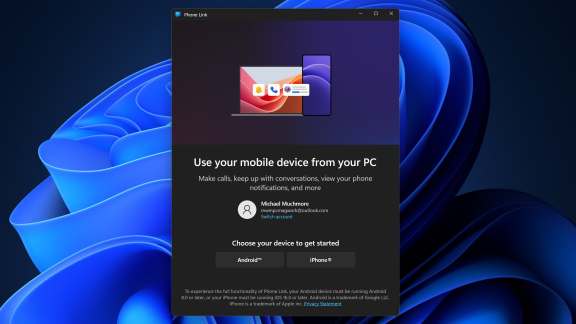
The Phone Link app bridges your PC and smartphone.
With it, you can:
-
Read and send texts
-
Answer calls
-
Access photos
-
Run Android apps (supported devices)
-
Share clipboard content
-
Use your phone as a webcam
Recent updates even allow cross-device app resuming and remote PC locking.
8. Replace Passwords With Secure Passkeys
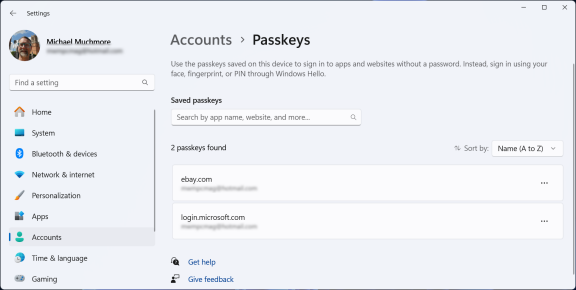
Passwords are increasingly insecure. Windows 11 fully supports passkeys, which use device-based authentication.
Benefits:
-
Phishing-resistant
-
No passwords to remember
-
Uses Windows Hello (face, fingerprint, PIN)
Passkeys sync securely across devices and integrate with supported websites and apps.
9. Use Focus Sessions to Eliminate Distractions
Built into the Clock app, Focus Sessions help you work deeply without interruptions.
Features include:
-
Timed work sessions
-
Automatic breaks
-
Notification silencing
-
Spotify integration
Perfect for students, writers, and professionals who need uninterrupted time.
10. Unlock the Full Power of File Explorer
Modern File Explorer includes:
-
Tabbed browsing
-
Drag-and-drop between tabs
-
Simplified toolbar
-
Context-aware actions
-
AI-powered context menu tools
Recent updates also improved dark mode consistency and added AI actions like image background removal and document summarization.
11. Quickly Access the Full App List
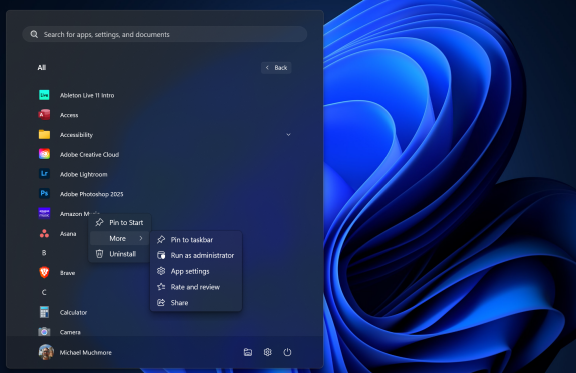
The Start menu prioritizes pinned and recommended items—but your full app list is just one click away.
Click All in the Start menu to:
-
Browse alphabetically
-
Jump by letter
-
Search instantly
Upcoming updates even make the full app list visible by default.
12. Organize the Start Menu Like a Pro
You can:
-
Pin essential apps
-
Create folders by dragging icons together
-
Resize pinned and recommended sections
-
Add quick-access system folders
This turns the Start menu into a personalized command center.
13. Edit Images with Built-In AI Tools
Windows 11 includes AI-powered image editing across:
-
Designer
-
Photos
-
Paint
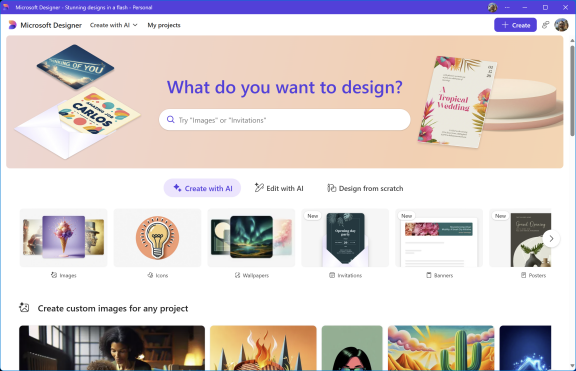
You can generate images from text, remove backgrounds, delete objects, and enhance photos without installing third-party apps.
14. Customize Everything with Themes
Themes control:
-
Accent colors
-
Backgrounds
-
Sounds
-
Cursor styles
-
Dark/light mode
You can create custom themes or download new ones from the Microsoft Store.
15. Fine-Tune the Start Menu Layout
Add or remove shortcuts like:
-
Settings
-
File Explorer
-
Network
-
Documents
-
Downloads
This puts frequently used tools one click away.
16. Improve App Recommendations (Or Disable Them)
Windows 11 intelligently suggests:
-
Frequently used apps
-
Recent files
-
Helpful tips
You can customize or disable these suggestions entirely under Start settings.
17. Take Control of Default Apps
Windows 11 uses per-file-type defaults for better precision.
While more detailed, this gives you complete control over:
-
Browsers
-
Media players
-
PDF viewers
-
Email clients
18. Monitor Battery Usage Like a Pro
Battery insights now show:
-
Usage trends
-
App-level consumption
-
Power-hungry background processes
You can limit background activity for specific apps to extend battery life.
19. Pair Audio Devices Faster Than Ever
The redesigned Sound settings let you:
-
Add microphones and speakers quickly
-
Switch outputs instantly
-
Enable advanced audio enhancements
-
Use Bluetooth LE Audio (supported devices)
20. Use (or Remove) Microsoft Teams Integration
Teams is no longer baked into Windows but remains deeply optimized.
You can:
-
Chat
-
Call
-
Video conference
-
Sync contacts
-
Use SMS without Teams accounts
Or uninstall it entirely if you prefer alternatives.
21. Enhance Audio with Mono and Spatial Sound
Accessibility and audio enhancements include:
-
Mono audio
-
Bass boost
-
Virtual surround
-
Loudness equalization
Perfect for accessibility needs or immersive media experiences.
22. Master Touch Gestures on Tablets and 2-in-1s
Windows 11 introduces intuitive multi-finger gestures for:
-
Task switching
-
Widgets
-
Desktop view
-
App minimization
These gestures dramatically improve touch-based productivity.
23. Learn the Most Useful Keyboard Shortcuts
Essential shortcuts include:
-
Win + W → Widgets
-
Win + A → Quick Settings
-
Win + Z → Snap Layouts
-
Win + V → Clipboard history
-
Win + Shift + S → Screenshot tool
Learning these saves hours over time.
24. Use the Game Bar Beyond Gaming
Game Bar isn’t just for gamers.
It allows:
-
Screen recording
-
Performance monitoring
-
Audio control
-
Resource tracking
Useful for tutorials, presentations, and troubleshooting.
25. Record High-Quality Audio with Sound Recorder
The new Sound Recorder app supports:
-
Multiple formats
-
Visual waveforms
-
Better input controls
Ideal for quick voice notes or interviews.
26. Enjoy the Modern Media Player
The redesigned Media Player replaces Groove with:
-
Cleaner UI
-
Better library management
-
Video playback improvements
27. Back Up Everything with Windows Backup
Windows Backup syncs:
-
Files
-
Apps
-
Settings
-
Credentials
Restoring a new PC becomes nearly effortless.
28. Instantly Clear Desktop Clutter with Title Bar Shake
Enable Title Bar Shake to:
-
Grab a window
-
Shake it
-
Minimize all other windows instantly
A simple but powerful focus tool.
29. Compress Files to ZIP, TAR, and 7z Natively
Windows 11 now supports:
-
ZIP
-
TAR
-
7z
No third-party tools required.
30. Project Other Devices to Your PC
Turn your PC into a wireless display:
-
Mirror another PC
-
Cast from Android
-
Control remotely
Perfect for presentations and collaboration.
31. Never Lose Your Mouse Cursor Again
Enable high-contrast, inverse-color mouse pointers to ensure visibility on any background—especially useful on large or high-resolution displays.
Final Thoughts: Stop Scratching the Surface of Windows 11
Windows 11 isn’t just a prettier Windows—it’s a smarter, faster, more capable platform designed for modern computing. Once you move beyond beginner habits and start using these hidden tricks, your PC becomes a productivity powerhouse.
Master these features, and Windows 11 stops feeling restrictive—and starts working for you.
Frequently Asked Questions (FAQ)
1. Is Windows 11 really better than Windows 10 in 2026?
Yes. Windows 11 offers significant improvements over Windows 10, especially in AI integration, multitasking, security, and performance optimization. Features like Microsoft Copilot, Snap Layouts, passkeys, and enhanced File Explorer make Windows 11 more efficient and future-ready.
2. What are the most useful hidden features in Windows 11?
Some of the most powerful hidden Windows 11 features include Snap Layouts, virtual desktops, AI-powered Copilot tools, passkeys for passwordless security, Focus Sessions, native 7z and TAR file compression, and advanced Start menu customization.
3. What is Microsoft Copilot in Windows 11 used for?
Microsoft Copilot is an AI assistant built directly into Windows 11. It can help write content, summarize documents, explain on-screen content, generate images, assist with coding, search files, and guide users through tasks in apps.
4. Do I need a Copilot+ PC to use Copilot features?
No. Basic Copilot features work on standard Windows 11 PCs. However, Copilot+ PCs unlock advanced AI capabilities such as Recall, Click-to-Do suggestions, semantic search, and enhanced image processing.
5. How do virtual desktops improve productivity in Windows 11?
Virtual desktops allow you to separate workspaces for different tasks, such as work, gaming, or personal use. Each desktop can have its own wallpaper and app layout, helping reduce distractions and improve focus.
6. Are Windows 11 widgets useful or just visual clutter?
Windows 11 widgets can be very useful when customized properly. They provide quick access to weather, calendar events, tasks, news, stocks, and more—without opening full apps.
7. Is Windows 11 safe for everyday use?
Yes. Windows 11 is one of the most secure versions of Windows ever released. It includes features like TPM 2.0, Secure Boot, Windows Hello, passkeys, built-in ransomware protection, and regular security updates.
8. What are passkeys and why should I use them in Windows 11?
Passkeys are a passwordless login method that uses biometric authentication or a device PIN. They are more secure than traditional passwords and protect against phishing attacks.
9. Can Windows 11 replace third-party productivity apps?
For many users, yes. Windows 11 includes built-in tools for screen recording, image editing, audio recording, backups, file compression, and multitasking—reducing the need for extra software.
10. How do Snap Layouts work in Windows 11?
Snap Layouts allow you to arrange multiple apps on your screen using predefined layouts. Hover over the maximize button or press Windows + Z to choose a layout instantly.
11. Is Windows 11 good for multitasking and remote work?
Absolutely. Features like Snap Layouts, virtual desktops, Focus Sessions, Teams integration, Phone Link, and clipboard history make Windows 11 ideal for remote work and multitasking.
12. Can I customize the Windows 11 Start menu?
Yes. You can pin apps, create folders, adjust layout proportions, add system shortcuts, and control recommended content to tailor the Start menu to your workflow.
13. Does Windows 11 support Android phones and apps?
Yes. With the Phone Link app, Windows 11 allows messaging, calling, photo access, notifications, clipboard sharing, and limited app integration for supported Android devices.
14. How can I improve Windows 11 performance without installing software?
You can improve performance by managing startup apps, limiting background processes, optimizing battery usage, using virtual desktops, enabling Focus Sessions, and adjusting visual effects.
15. Is Windows 11 suitable for gamers?
Yes. Windows 11 includes Auto HDR, DirectStorage, Xbox Game Bar, performance monitoring tools, and better hardware optimization for modern games.
16. What file compression formats does Windows 11 support natively?
As of recent updates, Windows 11 supports ZIP, TAR, and 7z file compression directly in File Explorer without third-party apps.
17. Can I back up my entire PC in Windows 11?
Yes. The Windows Backup app allows you to back up files, apps, settings, credentials, and Wi-Fi passwords to OneDrive for easy restoration.
18. Is Windows 11 good for touch screens and tablets?
Yes. Windows 11 is optimized for touch devices with improved gestures, spacing, and tablet-friendly UI elements.
19. Are Windows 11 updates still being actively developed in 2026?
Yes. Microsoft continues to actively update Windows 11 with new features, AI improvements, security patches, and performance enhancements.
20. Who should upgrade to Windows 11?
Windows 11 is ideal for students, professionals, content creators, gamers, and anyone who wants a secure, AI-powered, and modern operating system.