WordPress is one of the most popular content management systems in the world, powering millions of websites—from personal blogs to large-scale business platforms. One of the reasons WordPress is so widely used is its flexibility and constant evolution through updates, themes, and plugins. However, these frequent updates sometimes introduce a frustrating problem: a website getting stuck in maintenance mode.
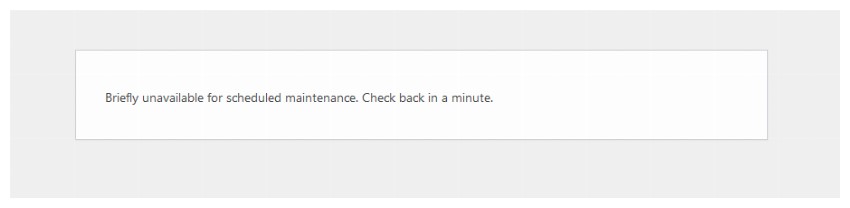
If you’ve ever visited your own WordPress site and seen a message like “Briefly unavailable for scheduled maintenance. Check back in a minute,” only to realize it never goes away, you’re not alone. This issue is more common than many website owners realize, especially among beginners.
Understanding WordPress Maintenance Mode
What Is Maintenance Mode in WordPress?
Maintenance mode is a temporary state that WordPress activates automatically when it performs system-level tasks such as:
-
Updating WordPress core files
-
Updating plugins
-
Updating themes
During these updates, WordPress creates a special file called .maintenance in the root directory of your website. This file tells WordPress to block public access and display a maintenance message to visitors.
The purpose of maintenance mode is to:
-
Prevent users from accessing partially updated files
-
Avoid broken layouts or malfunctioning features
-
Protect the website from security vulnerabilities during updates
In most cases, maintenance mode lasts only a few seconds or minutes.
Why WordPress Websites Get Stuck in Maintenance Mode
Although maintenance mode is designed to be temporary, several issues can prevent WordPress from exiting it properly.
1. Interrupted Update Process
The most common reason a WordPress site gets stuck in maintenance mode is an interrupted update.
This can happen if:
-
The browser is refreshed during an update
-
The user closes the update tab too early
-
Internet connectivity drops
-
The server times out
When the update process is interrupted, WordPress fails to delete the .maintenance file, leaving the site locked in maintenance mode.
2. Plugin or Theme Compatibility Issues
Not all plugins and themes are compatible with every WordPress version or PHP version.
Compatibility problems may occur when:
-
A plugin hasn’t been updated for the latest WordPress version
-
A theme uses deprecated functions
-
Two plugins conflict with each other
These conflicts can cause fatal errors during updates, preventing WordPress from completing the process.
3. Insufficient Server Resources
WordPress updates require adequate server resources to complete successfully.
Common limitations include:
-
Low PHP memory limit
-
Insufficient CPU processing power
-
Limited disk space
On shared hosting environments, server resources are often restricted, making updates more likely to fail.
4. Outdated or Incompatible PHP Version
PHP is the server-side language WordPress runs on. Using an outdated PHP version can cause serious compatibility issues.
Examples include:
-
Plugins requiring newer PHP features
-
Core WordPress updates optimized for modern PHP versions
When PHP conflicts occur, updates may halt unexpectedly.
5. Incorrect File Permissions
WordPress must have permission to write and delete files during updates.
Problems arise when:
-
File permissions are set too restrictively
-
Ownership is incorrect after server migration
-
Security plugins block file changes
If WordPress cannot delete the .maintenance file, the site remains locked.
6. Multiple Simultaneous Updates
Updating many plugins, themes, and the core at once increases the chance of failure.
When multiple updates run simultaneously:
-
Server load increases
-
One failed update can interrupt others
-
Maintenance mode may not deactivate properly
Why WordPress Uses Maintenance Mode (And Why It’s a Good Thing)
Despite its occasional problems, maintenance mode is a necessary and beneficial feature.
Protecting User Experience
Visitors accessing a site mid-update may encounter:
-
Broken layouts
-
Missing images
-
Non-functioning forms
Maintenance mode prevents confusion and frustration by clearly informing users that updates are in progress.
Preventing Data Corruption
User interactions during updates—such as form submissions or purchases—can lead to:
-
Data loss
-
Incomplete transactions
-
Database inconsistencies
Maintenance mode temporarily blocks these actions.
Improving Website Security
During updates, WordPress is more vulnerable to attacks. Maintenance mode reduces exposure by restricting public access.
How WordPress Activates Maintenance Mode
WordPress enables maintenance mode through a simple but effective mechanism.
The .maintenance File
-
Created automatically in the root directory
-
Contains a timestamp and update information
-
Checked every time a visitor loads the site
If the file exists, WordPress displays a maintenance message and stops loading the site normally.
Once updates finish successfully, WordPress deletes the file automatically.
How to Fix a WordPress Site Stuck in Maintenance Mode
If your site is stuck, don’t panic. The solution is usually straightforward.
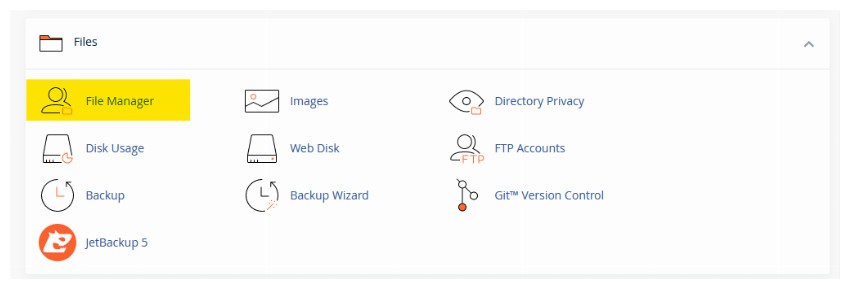
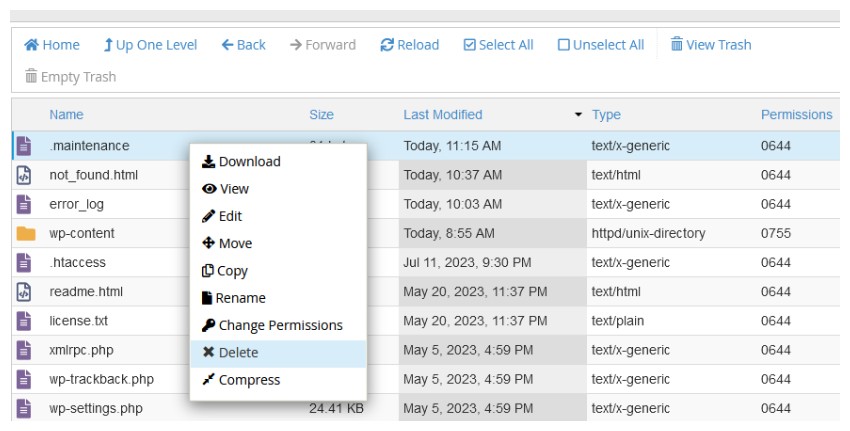
Method 1: Delete the .maintenance File Using cPanel
-
Log in to your hosting account
-
Open cPanel
-
Click File Manager
-
Navigate to public_html or your WordPress root directory
-
Locate the .maintenance file
-
Delete the file
-
Refresh your website
In most cases, this instantly restores your site.
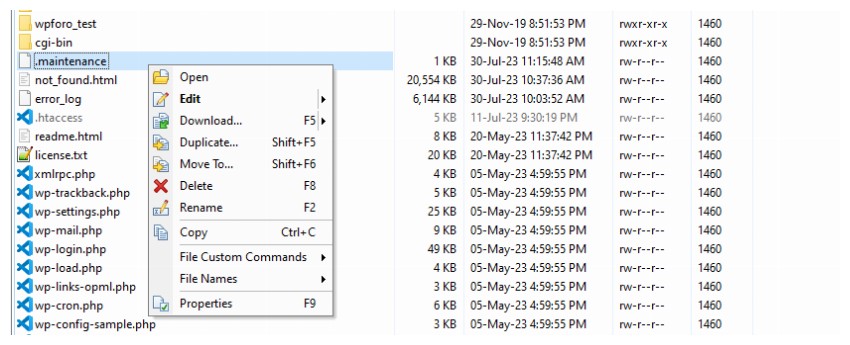
Method 2: Delete the .maintenance File Using FTP
-
Connect to your server using an FTP client (FileZilla, Cyberduck, etc.)
-
Navigate to the WordPress root directory
-
Enable viewing hidden files
-
Delete the .maintenance file
-
Reload your website
Method 3: Disable Problematic Plugins
If deleting the file doesn’t work:
-
Rename the plugins folder to plugins_old
-
Check if the site loads
-
Restore the folder name
-
Reactivate plugins one by one
This helps identify the plugin causing the issue.
Method 4: Switch to a Default Theme
Theme conflicts can also cause maintenance issues.
-
Switch to a default theme like Twenty Twenty-Four
-
Check website functionality
-
Update or replace the problematic theme
How to Prevent WordPress from Getting Stuck in Maintenance Mode
Prevention is better than recovery. Here are proven strategies to avoid the problem.
Update One Item at a Time
Avoid bulk updates. Update:
-
Plugins individually
-
Themes separately
-
Core updates last
This minimizes risk and makes troubleshooting easier.
Check Plugin and Theme Compatibility
Before updating:
-
Read plugin changelogs
-
Check supported WordPress versions
-
Verify PHP compatibility
Ensure Adequate Server Resources
-
Increase PHP memory limit
-
Upgrade hosting plans if needed
-
Use managed WordPress hosting for reliability
Use a Staging Environment
A staging site allows you to:
-
Test updates safely
-
Identify conflicts before going live
-
Avoid downtime on production sites
Keep PHP Updated
Use a PHP version recommended by WordPress (usually PHP 8.x).
Avoid Interrupting Updates
Never refresh or close the browser during updates. Wait for confirmation.
SEO Impact of Maintenance Mode
Is Maintenance Mode Bad for SEO?
Short-term maintenance mode is generally safe. However, prolonged maintenance can:
-
Reduce crawlability
-
Increase bounce rates
-
Harm user trust
Best SEO Practices During Maintenance
-
Keep maintenance periods short
-
Use a custom maintenance page with HTTP 503 status
-
Inform users when the site will return
Using Custom Maintenance Mode Pages
Instead of default messages, you can create professional maintenance pages using:
-
Maintenance mode plugins
-
Custom templates
-
Page builders like Elementor
Benefits include:
-
Branding consistency
-
Improved user trust
-
Email signup opportunities
WordPress maintenance mode is a vital feature designed to protect your website, your data, and your visitors. While getting stuck in maintenance mode can be stressful, it is usually easy to fix once you understand how WordPress handles updates.
By following best practices—updating carefully, monitoring compatibility, and maintaining proper server settings—you can significantly reduce the risk of encountering this issue again.
A well-managed WordPress site is not just about great content, but also about stable performance, smart updates, and proactive maintenance.
Frequently Asked Questions (FAQ)
1. What does maintenance mode mean in WordPress?
Maintenance mode in WordPress is a temporary state that activates automatically when the system is updating core files, plugins, or themes. During this time, visitors see a maintenance message instead of the website content to prevent errors and broken functionality.
2. Why does my WordPress site get stuck in maintenance mode?
A WordPress website usually gets stuck in maintenance mode when an update process is interrupted. This can happen due to server timeouts, browser refreshes, plugin conflicts, insufficient server resources, or file permission issues.
3. How do I know if my WordPress site is stuck in maintenance mode?
If your site continues to display a message like “Briefly unavailable for scheduled maintenance” for more than a few minutes, it is likely stuck. Normally, maintenance mode only lasts seconds or minutes during updates.
4. What causes WordPress to enter maintenance mode automatically?
WordPress enters maintenance mode automatically whenever it updates core files, plugins, or themes. It creates a temporary .maintenance file in the root directory to block access during the update process.
5. How can I quickly fix a WordPress site stuck in maintenance mode?
The fastest solution is to delete the .maintenance file from your WordPress root directory using cPanel File Manager or an FTP client. Once deleted, the website should load normally again.
6. Is it safe to delete the .maintenance file?
Yes, it is safe to delete the .maintenance file as long as no updates are actively running. The file only exists to control maintenance mode and does not affect your content or database.
7. Can plugins cause WordPress to get stuck in maintenance mode?
Yes. Incompatible or outdated plugins can conflict with WordPress updates, causing the update process to fail and leaving the site stuck in maintenance mode.
8. Can a theme cause maintenance mode issues in WordPress?
Yes. Themes that are not compatible with the current WordPress or PHP version can interrupt updates and cause maintenance mode problems. Switching to a default theme can help identify the issue.
9. Does hosting quality affect WordPress maintenance mode?
Absolutely. Low server resources, shared hosting limitations, or slow servers can interrupt updates, increasing the risk of getting stuck in maintenance mode.
10. Will being stuck in maintenance mode hurt SEO?
Short-term maintenance mode does not significantly affect SEO. However, if your site stays in maintenance mode for an extended period, search engines may reduce crawling frequency and rankings.
11. How long should WordPress maintenance mode normally last?
In most cases, WordPress maintenance mode lasts only a few seconds to a few minutes. Anything longer than 10–15 minutes usually indicates a problem.
12. Can I prevent WordPress from getting stuck in maintenance mode?
Yes. You can prevent it by updating plugins one at a time, checking compatibility, ensuring sufficient server resources, and avoiding browser refreshes during updates.
13. Is it better to use a maintenance mode plugin?
Maintenance mode plugins are helpful when you want a custom maintenance page for planned updates. However, they do not replace WordPress’s core maintenance mode during updates.
14. Can I customize the maintenance message shown to visitors?
Yes. You can use maintenance mode plugins or custom templates to display branded messages, countdown timers, or email signup forms instead of the default WordPress notice.
15. Should I enable maintenance mode manually before updates?
For large updates or busy websites, enabling maintenance mode manually is a good practice. It improves user experience and prevents visitors from interacting with the site during updates.
16. What is the .maintenance file in WordPress?
The .maintenance file is a temporary file created in the WordPress root directory during updates. Its presence tells WordPress to display the maintenance message instead of the website content.
17. Can updating multiple plugins at once cause maintenance issues?
Yes. Bulk updates increase server load and the risk of conflicts. Updating plugins and themes individually is safer and easier to troubleshoot.
18. Does PHP version affect WordPress maintenance mode?
Yes. Using an outdated or incompatible PHP version can cause update failures, leading to a site being stuck in maintenance mode.
19. Can I use FTP to fix maintenance mode without cPanel?
Yes. You can use any FTP client to access your WordPress root directory and delete the .maintenance file to restore your site.
20. Is maintenance mode normal for WordPress websites?
Yes. Maintenance mode is a normal and necessary feature in WordPress. Problems only occur when updates fail, not because maintenance mode exists.