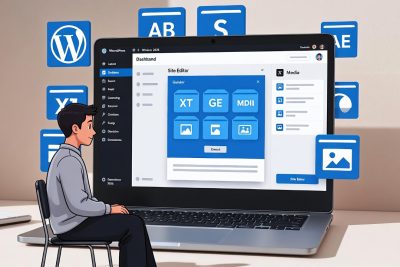
WordPress remains the world’s most popular content management system (CMS) in 2026, powering 43.2–43.5% of all websites globally (W3Techs, DemandSage). From personal blogs and local businesses in Bandung to major corporations and news outlets, WordPress offers free, open-source flexibility, powerful block editing (Gutenberg), full-site editing (Site Editor), thousands of themes and plugins, built-in SEO tools, and scalability for any project size.
This complete beginner course—updated for WordPress 6.9+ (with WordPress 7.0 previews)—guides you from absolute zero knowledge to confidently managing a professional site. The course is divided into three main sections and takes approximately 2–3 hours to complete if you follow along on your own computer. By the end, you’ll be able to install WordPress, create content, customize design, add functionality, manage users, and maintain your site securely.
Course Learning Outcomes
After completing this course, you will be able to:
- Understand what WordPress is and choose between .org and .com
- Install WordPress locally (testing) and on a live server
- Navigate the dashboard and use Gutenberg/Site Editor effectively
- Create and manage posts, pages, media, comments, and menus
- Customize themes, install plugins, and use the Customizer/Site Editor
- Add and manage users with proper roles
- Migrate, backup, and optimize your site
- Apply 2026 best practices: block themes, performance, security, AI tools
Prerequisites: A computer, internet connection, and curiosity. No coding required.
Introduction: Why Learn WordPress in 2026?
WordPress is free, open-source software you can install on your own hosting. It separates content from design, letting you focus on writing while the system handles structure, security, and presentation.
Key advantages in 2026:
- Full-site editing (Site Editor) with block themes
- Gutenberg block editor for drag-and-drop content
- 60,000+ plugins, 13,000+ free themes
- Excellent SEO, mobile-responsive by default
- Strong security updates, performance tools
- Integrations with AI tools, Clio, WooCommerce, etc.
- Community support + official documentation
Two versions:
- WordPress.org — Self-hosted (recommended for full control)
- WordPress.com — Hosted/managed (easier start, but limited free tier)
Recommendation: Use WordPress.org + reliable hosting (Hostinger, SiteGround, Kinsta).
Let’s begin!
Section 1: The Basics
Lesson 1: Welcome to the Course
(2 mins)
Welcome! This course is designed for absolute beginners. Whether you want to start a blog, business site, portfolio, or online store, WordPress can handle it all.
In this course you’ll learn:
- Installation (local + live)
- Dashboard navigation
- Content creation (posts vs pages)
- Media management
- Themes, plugins, customization
- Users, migration, settings
We’ll use clear steps, screenshots descriptions, and 2026 best practices. Follow along on your computer for best results.
Lesson 2: What Is WordPress?
WordPress is a free, open-source CMS released in 2003. It allows anyone to create, manage, and publish websites without coding.
Core features:
- Gutenberg block editor → drag-and-drop content
- Site Editor → edit entire site (templates, header, footer) with block themes
- Themes → control design
- Plugins → add functionality (SEO, security, forms, e-commerce)
- Users & roles → multi-user collaboration
- Built-in media library, comments, menus, widgets
What can you build?
- Personal blogs
- Business websites
- Online stores (WooCommerce)
- Portfolios
- Membership sites
- News/magazine sites
- Forums, directories, job boards
WordPress.org vs WordPress.com (2026):
- WordPress.org: Free software + your hosting/domain → full control, any plugin/theme
- WordPress.com: Hosted platform → free subdomain, limited free tier, paid plans unlock plugins/themes
Recommendation for beginners: WordPress.org + affordable hosting (Hostinger AI Builder or SiteGround).
Lesson 3: Installing WordPress Locally
Local installation lets you develop safely without a live site.
Recommended tool in 2026: Local by Flywheel (free, easiest)
Step-by-step:
- Download Local (localwp.com)
- Install and open
- Click “Create new site”
- Choose name, environment (preferred PHP 8.3+, MySQL 8)
- Select “WordPress” blueprint → create
- Once ready, click “Open site” → your local URL (e.g., mytestsite.local)
- Dashboard: mytestsite.local/wp-admin
Alternative: XAMPP (Windows) or MAMP (Mac)
- Install → start Apache + MySQL
- Create database in phpMyAdmin
- Download WordPress → extract to htdocs
- Visit localhost/yoursite → run installer
Test freely—changes only visible on your computer.
Lesson 4: Installing WordPress on a Live Server
Go live when ready.
Prerequisites:
- Domain name
- WordPress-optimized hosting (Hostinger, SiteGround, Bluehost, Kinsta)
Recommended: Hostinger (one-click + AI Builder)
Step-by-step:
- Sign up → choose WordPress plan
- During checkout/setup: select “Install WordPress”
- Enter site title, admin username/password
- Installer runs automatically
- Access: yourdomain.com/wp-admin
Manual installation:
- Upload WordPress files via hosting file manager or FTP
- Create database in hosting panel
- Visit yourdomain.com → run installer
- Enter database details → create admin account
Post-install:
- Install free SSL (Let’s Encrypt via hosting)
- Set permalinks to “Post name”
- Install essential plugins (Rank Math, Wordfence, UpdraftPlus)
Lesson 5: Getting Familiar With the WordPress Dashboard
The dashboard (wp-admin) is your control center.
Main sections:
- Home: Quick stats, activity, draft posts
- Updates: Core, themes, plugins
- Posts: Create/manage blog articles
- Pages: Static content
- Media: Upload/organize images/videos
- Comments: Moderate feedback
- Appearance: Themes, Customize, Editor
- Plugins: Add/remove/manage
- Users: Add/manage
- Settings: General, Permalinks, etc.
2026 customization:
- Screen Options → show/hide columns
- Help tab → context-sensitive help
- Site Editor (Appearance → Editor) for block themes
Tip: Bookmark wp-admin for quick access.
Section 2: Content Management
Lesson 6: WordPress Pages vs. Posts
Posts:
- Chronological blog content
- Categories, tags, comments
- Appear in feeds/archives
- Good for news, tutorials, updates
Pages:
- Static, timeless content
- No categories/tags/comments by default
- Used for Home, About, Contact, Services
Both use the same Gutenberg editor.
Lesson 7: A Quick WordPress Gutenberg Tutorial (2026)
Gutenberg is the default block editor.
Basic workflow:
- Posts/Pages → Add New
- Enter title
- Click (+) to add blocks: Paragraph, Heading, Image, Gallery, List, Quote, Video, etc.
- Select block → toolbar for formatting
- Right sidebar: block settings (color, spacing, typography)
- Document settings: featured image, permalink, categories/tags
2026 features:
- Global Styles (Site Editor)
- Reusable blocks & patterns
- AI-assisted block suggestions (some plugins)
- Lock blocks for team editing
Keyboard shortcuts:
- Ctrl/Cmd + Shift + P → command palette
- Ctrl/Cmd + B → bold
- Ctrl/Cmd + K → link
Lesson 8: Uploading and Organizing Media
Media Library:
- Media → Add New → drag/drop files
- Edit: alt text (SEO + accessibility), caption, description
Best practices:
- Optimize images before upload (Smush, ShortPixel)
- Use descriptive file names
- Add alt text always
- Organize with folders (plugins: FileBird, Real Media Library)
Lesson 9: Managing WordPress Comments
Settings → Discussion → control global comment settings.
Manage:
- Comments screen → approve, reply, spam, trash
- Use Akismet anti-spam plugin
- Disable comments on static pages
Lesson 10: Working With WordPress Sidebars and Widgets
Sidebars = widget areas (usually right/left of content).
Add widgets:
- Appearance → Widgets → drag to sidebar
2026 note: Block themes use Site Editor for widget areas.
Common widgets:
- Recent Posts, Categories, Recent Comments, Search
Lesson 11: Building and Maintaining Menus
Appearance → Menus:
- Create new menu
- Add pages/posts/custom links
- Drag to arrange hierarchy
- Assign to location (primary, footer)
2026: Menus editable in Site Editor.
Section 3: Customization, Plugins, and Settings
Lesson 12: Using the WordPress Customizer
Appearance → Customize → live preview:
- Site Identity (title, logo)
- Colors
- Menus
- Widgets
- Homepage settings
- Additional CSS
Block themes: Most customization now in Site Editor.
Lesson 13: Working With Themes
Appearance → Themes → Add New:
- Browse free themes (filter “Block themes”)
- Preview → Install → Activate
2026 recommendations:
- Twenty Twenty-Six (default block theme)
- Astra, GeneratePress, Neve, Kadence (lightweight)
Customize in Site Editor (block) or Customizer (classic).
Lesson 14: Working With Plugins
Plugins → Add New:
- Search → Install → Activate
Essential 2026 plugins:
- Rank Math (SEO)
- Wordfence (security)
- WP Rocket or LiteSpeed Cache (speed)
- UpdraftPlus (backup)
- Smush (images)
Limit to 10–15 active plugins.
Lesson 15: Adding and Managing Users
Users → Add New:
- Set role: Subscriber, Contributor, Author, Editor, Administrator
Manage permissions carefully.
Lesson 16: How to Move a WordPress Site
Methods:
- Plugin: Duplicator, All-in-One WP Migration
- Manual: Export database, copy files, update URLs (Better Search Replace)
Use staging first.
Lesson 17: Customizing WordPress via Settings
Settings menu:
- General: Title, tagline, timezone
- Writing: Default category
- Reading: Homepage/posts page
- Discussion: Comment settings
- Media: Upload sizes
- Permalinks: Pretty URLs
- Privacy: Policy page
Final Thoughts & Next Steps
Congratulations! You’ve completed the WordPress for Beginners course. You now know how to install, create content, customize, and maintain a WordPress site.
Next steps:
- Choose hosting (Hostinger recommended)
- Install WordPress
- Select a block theme (Twenty Twenty-Six or Astra)
- Install essential plugins
- Create your first post/page
- Customize in Site Editor
Frequently Asked Questions (FAQ)
1. Apa itu WordPress?
WordPress adalah sistem manajemen konten (CMS) gratis dan open-source yang digunakan untuk membuat dan mengelola website tanpa harus memahami pemrograman. WordPress cocok untuk blog, website bisnis, portofolio, hingga website profesional.
2. Apakah WordPress masih relevan di tahun 2026?
Ya, WordPress tetap sangat relevan di 2026. WordPress digunakan oleh lebih dari 40% website di seluruh dunia dan terus berkembang dengan fitur seperti Gutenberg, Site Editor, peningkatan performa, keamanan, serta integrasi teknologi terbaru.
3. Apakah belajar WordPress harus bisa coding?
Tidak. WordPress dapat digunakan tanpa kemampuan coding. Sebagian besar pengelolaan website dilakukan melalui editor visual (Gutenberg), tema, dan plugin. Coding hanya diperlukan jika ingin kustomisasi tingkat lanjut.
4. Apa perbedaan WordPress.org dan WordPress.com?
WordPress.org adalah software gratis yang diinstal di hosting sendiri dan memberikan kontrol penuh atas website. WordPress.com adalah layanan hosting WordPress dengan fitur terbatas di versi gratis. Untuk fleksibilitas maksimal, WordPress.org lebih direkomendasikan.
5. Berapa lama waktu yang dibutuhkan untuk belajar WordPress?
Untuk pemula, dasar WordPress bisa dipelajari dalam 2–3 jam. Namun, untuk benar-benar mahir dan percaya diri mengelola website, dibutuhkan latihan rutin dan eksplorasi fitur lanjutan.
6. Apakah WordPress gratis?
WordPress sebagai software bersifat gratis. Namun, untuk website online dibutuhkan biaya domain dan hosting. Banyak tema dan plugin gratis yang sudah cukup untuk membuat website profesional.
7. Apakah WordPress aman digunakan?
Ya, WordPress aman jika selalu diperbarui dan dikonfigurasi dengan benar. Gunakan plugin keamanan, kata sandi yang kuat, backup rutin, dan update sistem untuk menjaga keamanan website.
8. Apakah WordPress cocok untuk pemula?
Sangat cocok. WordPress dirancang ramah pemula dengan tampilan dashboard yang mudah dipahami, editor drag-and-drop, serta dokumentasi dan komunitas yang besar.
9. Apakah saya bisa membuat website tanpa internet?
Bisa. Kamu dapat menginstal WordPress secara lokal menggunakan aplikasi seperti Local by Flywheel atau XAMPP untuk belajar dan mencoba tanpa koneksi internet.
10. Apakah WordPress bisa digunakan untuk website bisnis?
Bisa. WordPress banyak digunakan untuk website bisnis, company profile, toko online, dan landing page. Dengan tema dan plugin yang tepat, WordPress bisa terlihat sangat profesional.
11. Apakah WordPress bagus untuk SEO?
Ya. WordPress dikenal ramah SEO. Struktur URL, kecepatan, serta plugin SEO membantu website mudah dioptimalkan untuk mesin pencari seperti Google.
12. Apa itu Gutenberg dan Site Editor?
Gutenberg adalah editor berbasis blok untuk membuat konten secara visual. Site Editor memungkinkan pengaturan keseluruhan tampilan website seperti header, footer, dan template menggunakan sistem blok.
13. Apakah saya bisa mengganti tema WordPress kapan saja?
Bisa. Tema WordPress dapat diganti kapan saja tanpa menghilangkan konten. Namun, tampilan dan tata letak mungkin perlu penyesuaian ulang.
14. Apakah plugin WordPress aman digunakan?
Plugin aman digunakan jika berasal dari sumber terpercaya dan selalu diperbarui. Hindari memasang terlalu banyak plugin untuk menjaga performa website.
15. Apakah kursus ini cocok untuk pelajar dan pemula?
Ya. Kursus ini dibuat khusus untuk pemula, pelajar, dan siapa saja yang ingin belajar WordPress dari nol dengan bahasa yang mudah dipahami.
16. Apakah WordPress bisa digunakan untuk jangka panjang?
Bisa. WordPress sangat stabil dan scalable, cocok untuk website kecil hingga besar, serta terus dikembangkan oleh komunitas global.
17. Apakah saya perlu hosting mahal untuk WordPress?
Tidak. Banyak hosting terjangkau yang sudah optimal untuk WordPress. Pilih hosting sesuai kebutuhan dan skala website.
18. Apakah saya bisa mengembangkan WordPress menjadi toko online?
Bisa. WordPress dapat dikembangkan menjadi toko online dengan plugin e-commerce yang tersedia, tanpa perlu membuat website dari nol.
19. Apakah WordPress mendukung tampilan mobile?
Ya. Sebagian besar tema WordPress sudah responsif dan otomatis menyesuaikan tampilan di perangkat mobile.
20. Apakah WordPress cocok untuk website jangka panjang?
Sangat cocok. WordPress fleksibel, mudah dikembangkan, dan terus diperbarui sehingga ideal untuk proyek jangka panjang.