WordPress remains the world’s most popular content management system (CMS), powering over 44% of websites on the internet as of early 2026. With the upcoming WordPress 7.0 release targeted for April 2026, featuring enhanced developer tools, improved Fonts screen, and PHP-only blocks, it’s an exciting time for beginners to dive in. WordPress allows users of any skill level to create stunning websites without intensive coding—much like using a modern word processor.
In this beginner-friendly WordPress guide, we’ll explore the benefits of WordPress, provide a step-by-step walkthrough of the dashboard, and guide you through creating pages, customizing your site, and going live using the popular Divi theme (now in Divi 5 Public Beta 7 with new Preset Manager features). Whether you’re in Bandung, West Java, or anywhere else, let’s build your first site!
What is WordPress?
WordPress started in the early 2000s as a blogging platform but has evolved into a versatile CMS for any site type—from membership platforms to forums and e-commerce stores. There are two versions: WordPress.com (hosted, all-in-one) and WordPress.org (self-hosted, more flexible). We’ll focus on WordPress.org for its customization power, requiring separate hosting.
As of 2026, WordPress 6.9 (released December 2025) is current, with 7.0 in planning—bringing better performance, security, and developer features like the new Fonts Library and Preset Manager integrations.
The Benefits of Building a Website with WordPress
WordPress is free (core software), but costs include hosting ($3–$8/month intro), domains ($10/year), plugins, and themes. Its ease-of-use shines: no coding needed for basics, with drag-and-drop builders like Divi AI making it beginner-proof.
Key perks:
- Customization: Thousands of themes/plugins for unique designs.
- Scalability: Handles traffic growth seamlessly.
- SEO-Friendly: Built-in tools plus plugins like Yoast SEO boost rankings.
- Community Support: Vast tutorials, forums, and updates (e.g., 2026’s focus on AI-assisted editing).
- Ecosystem: Integrates with tools like WooCommerce for shops.
For Bandung users, local hosting options ensure low latency.
Setting Up Your Hosting Plan
Choose reliable hosting for speed, security, and scalability. We recommend SiteGround for 2026—fast, secure, and WordPress-optimized. Plans (intro pricing):
- StartUp: $2.99/mo (renews $17.99) – 1 site, 10GB storage.
- GrowBig: $4.99/mo (renews $29.99) – Unlimited sites, 20GB, premium features.
- GoGeek: $7.99/mo (renews $44.99) – 40GB, advanced tools.
Alternatives: Hostinger, Pressable, Cloudways. SiteGround includes free SSL, CDN, emails, and malware protection.
Setting Up WordPress
Follow these steps for a smooth setup in 2026.
Step 1: Installing WordPress
Use SiteGround’s one-click installer (updated for WP 6.9+). Log in to Site Tools > Set Up Site > Start New Website > WordPress. Create admin credentials and finish. Access via yourdomain.com/wp-admin.
For manual install: Download from wordpress.org, upload via FTP, create database in hosting panel.
Here’s a typical installation screen:


Step 2: WordPress for Beginners – the Dashboard
The dashboard (wp-admin) is your control center. Key sections:
- Home: Quick links, updates.
- Updates: Keep core (to 6.9/7.0), themes, plugins current.
- Posts: Create/edit blog content.
- Media: Upload images/videos.
- Pages: Static content.
- Comments: Moderate discussions.
- Appearance: Themes, menus, widgets.
- Plugins: Install/manage extensions.
- Users: Add/edit roles.
- Tools: Import/export, health checks.
- Settings: General, reading, permalinks.
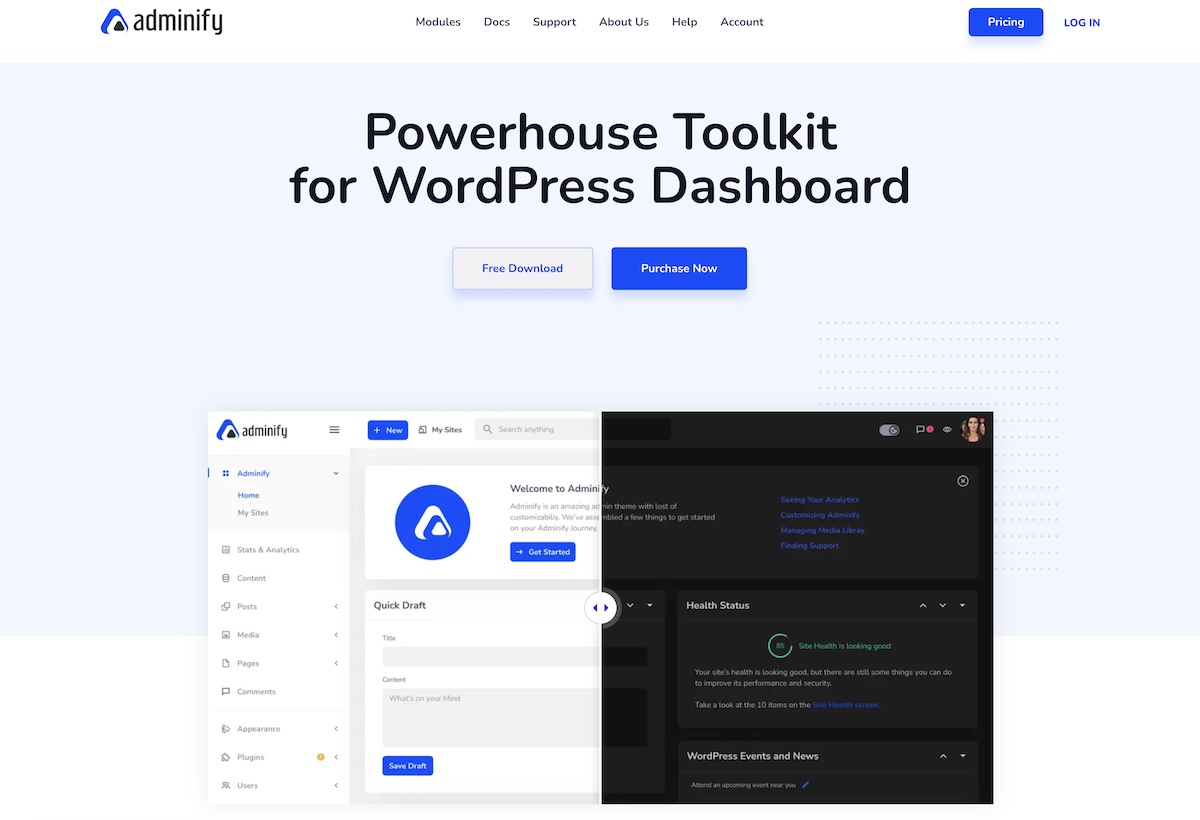
Updated 2026 dashboard:

Step 3: WordPress for Beginners – Themes
Themes control design. Install via Appearance > Themes > Add New. Free from WP directory or upload premium like Divi 5 (now with Preset Manager for easier styling).
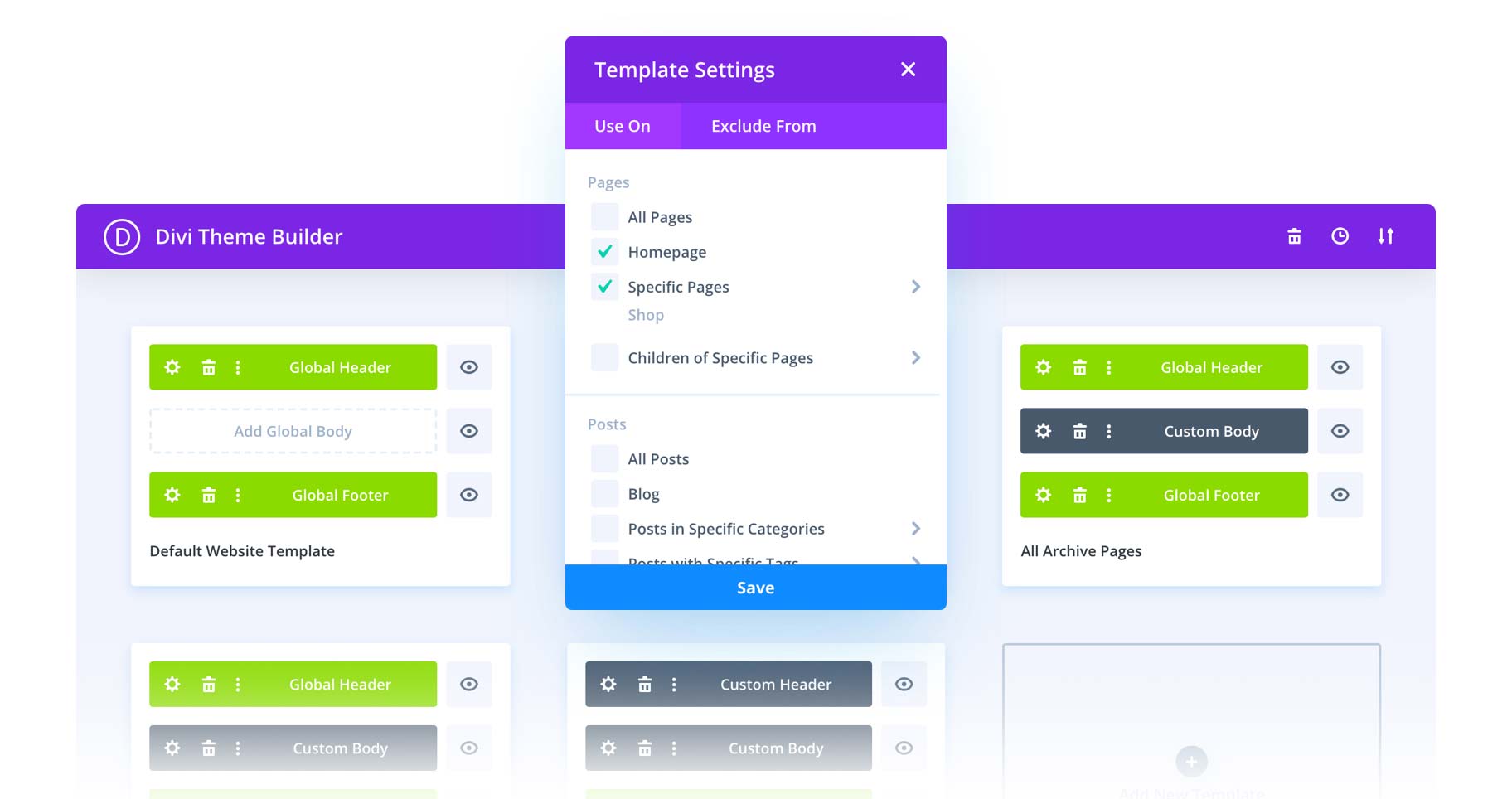
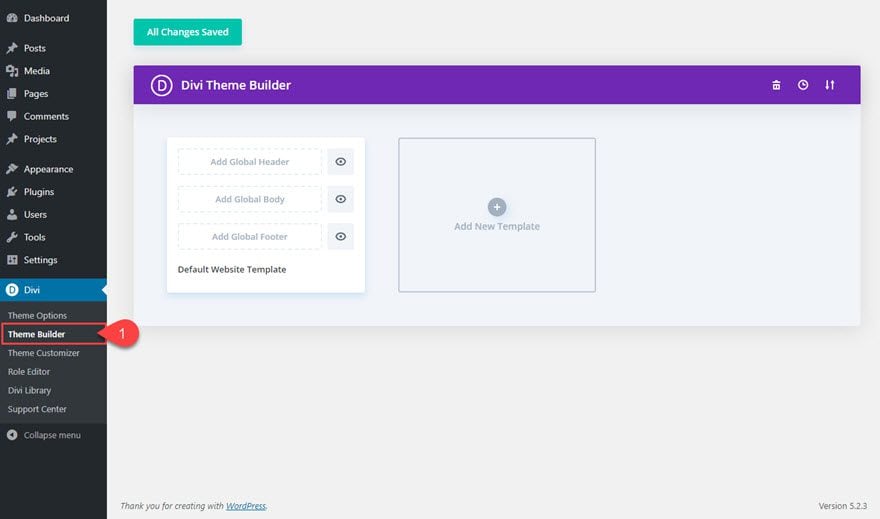
Divi excels with 2000+ layouts, AI generation, Theme Builder for headers/footers.
Step 4: WordPress for Beginners – Plugins
Plugins add features. Install via Plugins > Add New. 2026 essentials:
- Yoast SEO: SEO optimization.
- WP Rocket: Caching/speed.
- UpdraftPlus: Backups.
- Akismet: Spam protection.
- WooCommerce: E-commerce.
- Elementor: Page builder (alternative to Divi).
- WPForms: Forms.
- MonsterInsights: Analytics.
Plugins page:


Step 5: WordPress for Beginners – Adding Content
Use Gutenberg or Divi Builder. Create posts/pages via respective menus. With Divi AI: Enable builder > Generate Layout > Describe page > Customize.
Divi interface:
Step 6: WordPress for Beginners – Customization
- CSS: Add via theme options or customizer.
- Auto-Updates: Enable for plugins.
- SEO: Use Yoast/Rank Math; set title/tagline in Settings > General.
- Reading: Set homepage, uncheck search engine discouragement.
- Theme Settings: Add logo, social, colors in Divi > Theme Options.
- Backup: Use UpdraftPlus or host backups.
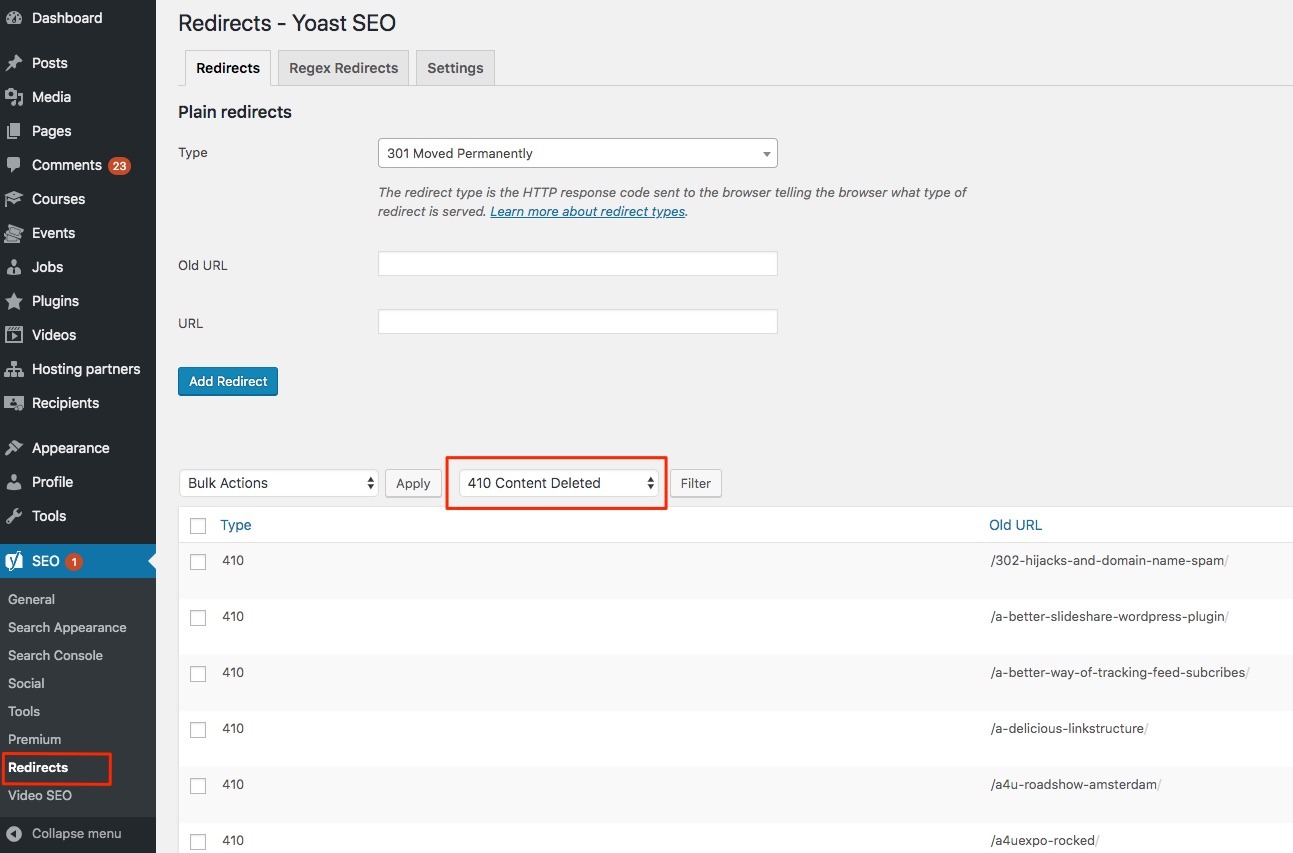
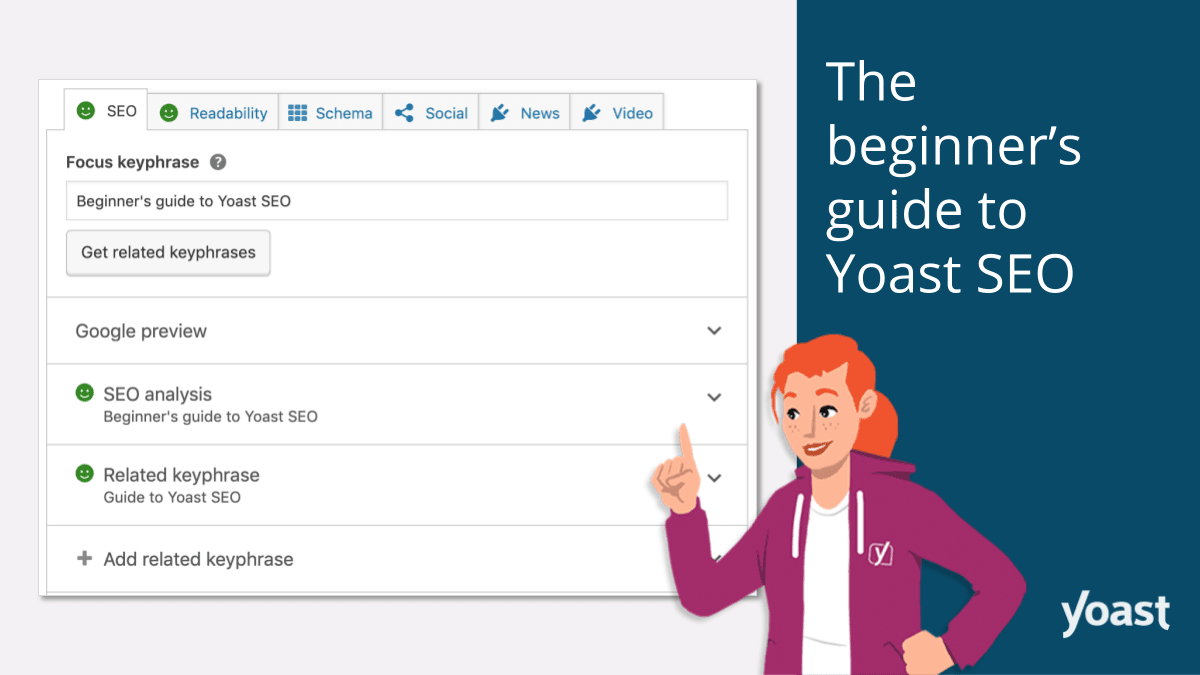
Yoast settings:
Step 7: WordPress for Beginners – Taking Your Website Live
Point domain in hosting panel. Post-launch:
- Speed test (optimize with WP Rocket).
- Test forms (WPForms + SMTP like WP Mail SMTP).
- Backup.
- SSL (free via host).
- Submit sitemap to Google.
- Check metadata.
- Add analytics (MonsterInsights).
Build Your Dream Website With WordPress
WordPress empowers beginners to create professional sites. Pair with SiteGround hosting and Divi for optimal results. For Bandung users, local CDNs ensure speed.
WordPress for Beginners FAQ (2026 Edition)
1. What is the difference between WordPress.com and WordPress.org? WordPress.org is the self-hosted, open-source version (free software, full control, install any theme/plugin, own your data). You need separate hosting and domain. WordPress.com is hosted by Automattic (easier setup, but limited customization on free/cheap plans, they own your data). This guide focuses on WordPress.org for maximum flexibility and no restrictions.
2. Is WordPress still free in 2026? Yes, the core WordPress software is 100% free forever. However, real costs include:
- Hosting (~Rp 50.000–150.000/month intro in Indonesia)
- Domain (~Rp 150.000–250.000/year)
- Premium themes (e.g., Divi ~$89 lifetime)
- Plugins (some free, premium $20–$100/year) You can start very cheaply with free themes/plugins and local hosting.
3. What is the best hosting for beginners in Indonesia in 2026? SiteGround remains top-rated for WordPress beginners due to speed, security (free SSL, WAF, daily backups), one-click install, and good performance in Southeast Asia. Local alternatives: Niagahoster, Rumahweb, DomaiNesia (cheaper, Indonesian support). International: Hostinger (very affordable), Cloudways (managed VPS), Pressable (WordPress-only). Tip: Choose one with free CDN and staging for safe testing.
4. How do I install WordPress in 2026? Easiest: Use your host’s one-click installer (SiteGround Site Tools, Niagahoster cPanel, etc.). Steps:
- Sign up for hosting
- Choose “Install WordPress”
- Set admin username/password
- Finish → log in at yourdomain.com/wp-admin Manual install (advanced): Download from wordpress.org, upload via FTP, create MySQL database.
5. What is the WordPress dashboard and how do I use it? The dashboard (wp-admin) is your control center. Key areas in 2026:
- Home → quick stats, updates
- Posts → blog articles
- Pages → static content (About, Contact)
- Media → upload images/videos
- Appearance → themes, menus, widgets
- Plugins → add features
- Settings → site title, permalinks, reading Always keep core, themes, and plugins updated for security.
6. Should I use a free theme or buy a premium one like Divi? Free themes (Twenty Twenty-Six, Astra) are good for starting. Premium like Divi 5 (2026 version with Preset Manager, AI layout gen, better performance) offers:
- Drag-and-drop Visual Builder
- 2000+ premade layouts
- Theme Builder for headers/footers
- Divi AI for auto-generating pages Best for beginners who want professional results fast.
7. What are the must-have plugins for a new WordPress site in 2026? Essential free plugins:
- Yoast SEO or Rank Math → SEO
- UpdraftPlus or Duplicator → backups
- WP Rocket or LiteSpeed Cache → speed
- Akismet → spam protection
- WPForms Lite → contact forms
- Really Simple SSL → easy HTTPS
- Smush or EWWW → image optimization For Divi users: Divi Marketplace extensions (Divi Plus, Divi Supreme Pro).
8. How do I add content (posts and pages) in WordPress? Two main ways:
- Gutenberg Block Editor (built-in): Click Posts/Pages > Add New → add blocks (text, image, heading).
- Divi Builder: Click “Use Divi Builder” → drag modules or use Divi AI to generate layout. Posts = blog articles (categories/tags). Pages = static (Home, About, Contact). Publish when ready.
9. How can I make my WordPress site look professional without coding? Use a page builder:
- Divi Visual Builder (drag-drop modules, AI help)
- Elementor (free + pro)
- Gutenberg + Spectra/Blocksy add-ons Customize colors, fonts, logo in Appearance > Customize or theme options. Add menus under Appearance > Menus.
10. How do I make my site secure and fast in 2026? Security:
- Use strong password
- Enable 2FA (via plugin like Wordfence)
- Keep everything updated
- Free SSL (Let’s Encrypt via host)
- Security plugin (Wordfence, Sucuri) Speed:
- Good hosting + CDN
- Caching plugin (WP Rocket)
- Optimize images
- Minify CSS/JS Test with GTmetrix or PageSpeed Insights.
11. How do I take my WordPress site live? If on temporary domain (e.g., SiteGround):
- Buy domain (Niagahoster, Namecheap)
- Point nameservers to host
- Update site URL in Settings > General
- Backup first
- Test forms, speed, mobile view
- Submit sitemap to Google Search Console
- Add analytics (MonsterInsights)
12. How do I back up my WordPress site?
- Host-provided backups (SiteGround auto daily)
- Plugins: UpdraftPlus (free, store to Google Drive/Dropbox)
- Manual: Export via Tools > Export Always backup before updates or major changes.
13. Can I create an online store with WordPress? Yes! Install WooCommerce (free plugin). Add products, set up payments (Midtrans, DOKU for Indonesia), shipping. Divi + Woo modules make beautiful shop pages.
14. What should I do if my site is slow or hacked? Slow: Optimize images, enable caching, upgrade hosting. Hacked: Change passwords, scan with Wordfence, restore clean backup, update everything, harden security (limit login attempts).
15. Where can I get help if I’m stuck in Bandung?
- WordPress.org support forums
- YouTube tutorials (search “WordPress 2026 tutorial”)
- Facebook groups: “WordPress Indonesia”, “Divi Indonesia”
- Local: Bandung digital agencies or coworking spaces (Kumpul, Kreatif Hub) often have WP meetups